Via the Conditions tab on webform elements you can add conditional logic to any element to change its state (visible, hidden, focused, read-only, required, ...) based on the value of another field:
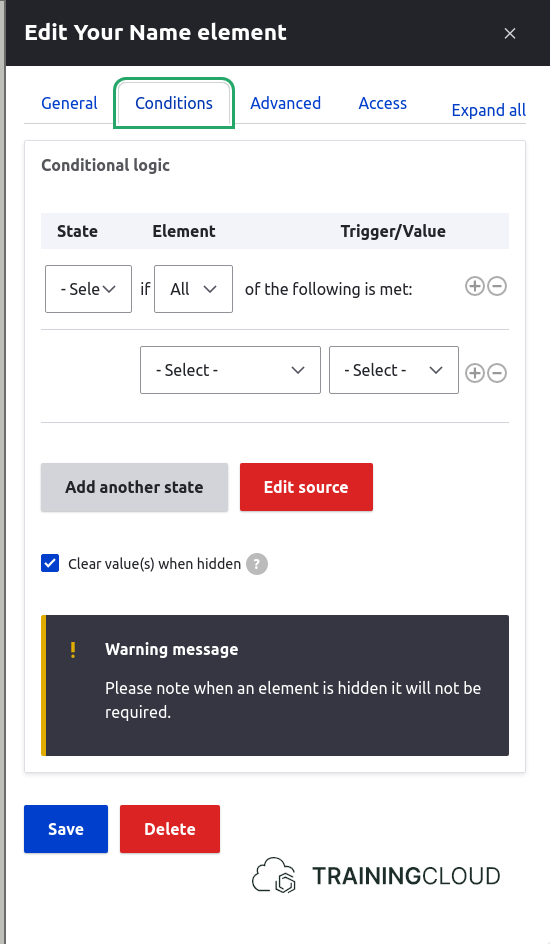
Conditional logic
Usually conditional logic follows the IF → THEN → ELSE structure:
IF (condition is met)
THEN (DO something)
However, Webforms reverses this logic:
DO (something)
IF (condition is met)
Example:
DO (set the state of this element (A) to  _hidden_)
IF (element B is filled in)
→ as long as element B remains empty, A's state does not change.
→ as soon as element B has a value, element A gets hidden.
Setting up a conditional logic rule
Let's add this functionality: "hide the Name element when the Email element is filled in":
First you should think about formulating the logic. You don't need to enter this "code" anywhere, but it helps you work out what you need to configure exactly.
In our case, the rule we'll need to configure will be:
DO (set this element to hidden)
IF (Email element is filled in)
Activity 1
In the Name element's configuration, add the conditional rule that corresponds to the logic above.
Save and test your form.
Activity 2
Add the following functionality to the duplicated dinner form:
- Element(s) to indicate whether the user will bring their partner. The possible answer should be either yes or no. By default it should be set to no.
- If the partner will be present:
- show element(s) for partner's dietary and drinks preferences.
→ You can duplicate elements, just like you can duplicate entire forms.
The quickest way to add add the partner's dietary and drinks preferences elements is by duplicating those fields.
Activity 3
In the previous activity you had to show/hide two elements, so you had to define the same logical condition on both elements.
What if you had to show/hide 10, 20, or more elements? That would take a lot of time and effort.
Luckily, you can put elements into a container element such as "Container", "Fieldset", and "Section", and then configure one a logical rule to show/hide the container as a whole.
- Duplicate you reservation form again.
- Remove the logical conditions
- Add a container element
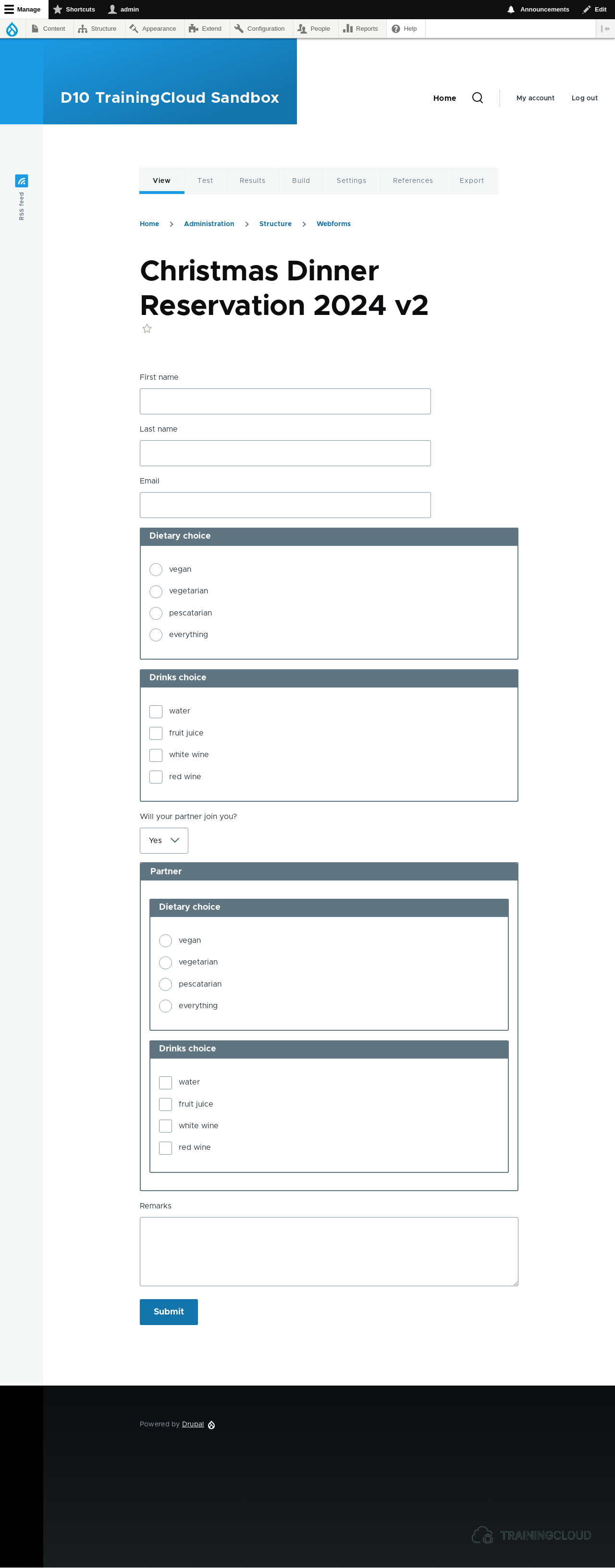
- Move the two "partner preference" elements and put them inside the container.
- Add the logical rule to the container element.
The result should look similar to this:
Summary
- You can add conditional logic to any element to change its state (visible, hidden, focused, read-only, required, ...) based on the value of another field.
- You can also add conditional logic to a container element. The state change will then apply to all elements inside the container.