The Email and Handlers section lets you set up actions that should happen after a form was submitted, such as sending mail or sending the submitted data to external systems.
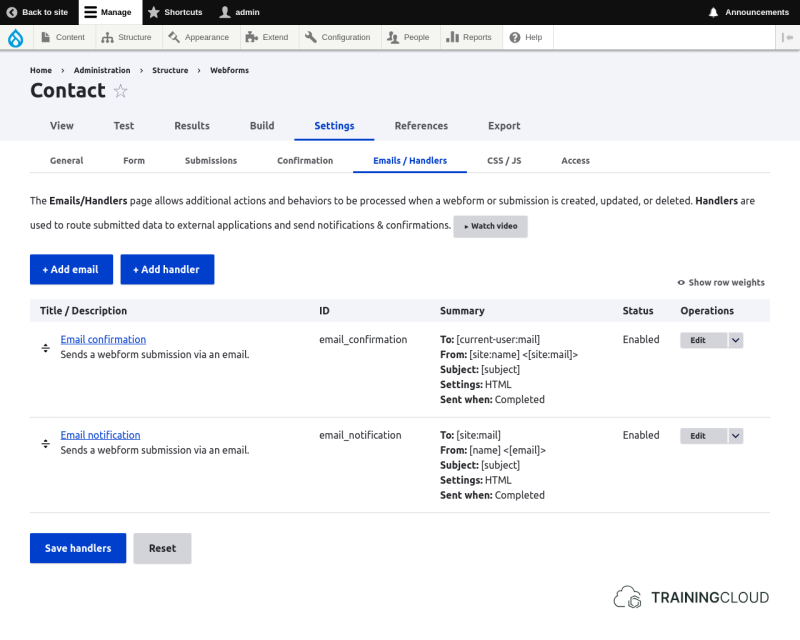
For each webform you can define multiple email tasks or other handlers.
When configuring any type of handler, you have access to the webform's submitted values, so you can do things like:
- send a mail to the email address in an "email" form element
- personalize messages using a "your name" form element
- conditionally execute a task based on the value of one of the form elements
- ...
Handler types
By default, you can choose from a handful of different handler types, and more types may be made available by contributed modules that extend the Webform module.
The default handler types are:
- Action
- Debug
- Remote post
- Settings
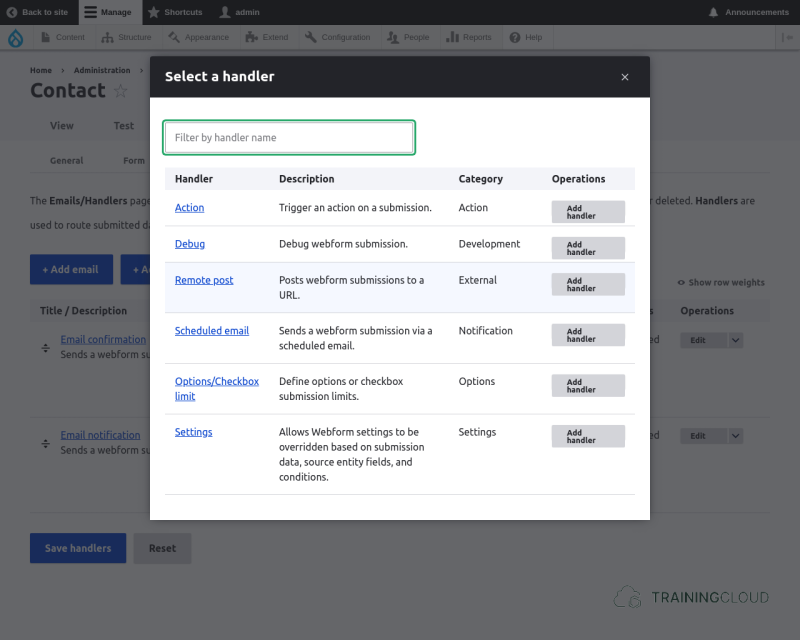
We will cover each handler type briefly, and discuss Email and Remote Post handlers in separate units.
Type: Email
Email handlers let you send email after a webform is submitted. You have complete freedom to specify the recipients, subject, and message.
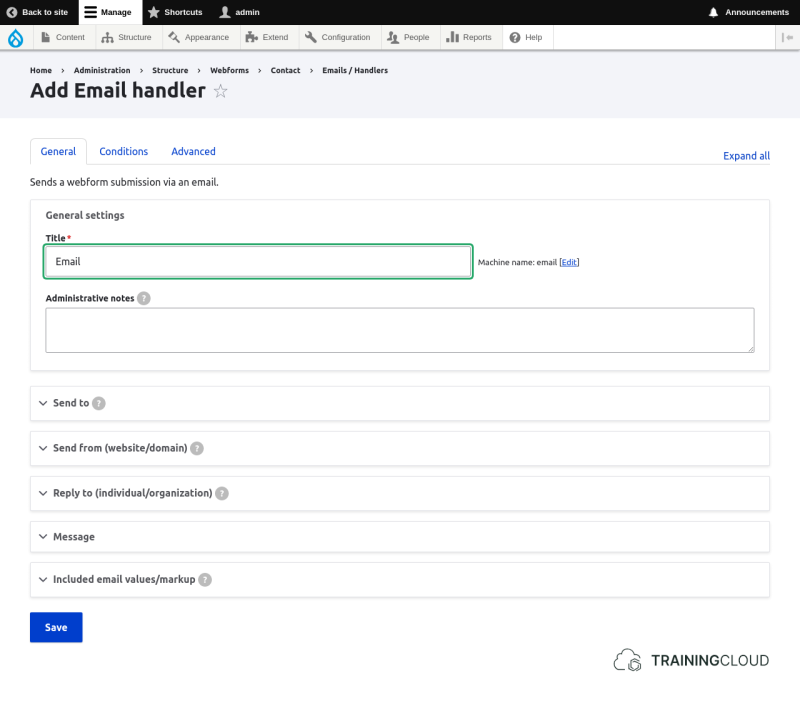
We will cover Email Handlers in detail in a next unit.
Type: Action
Action handlers let you perform tasks when certain events (also named triggers), occur.
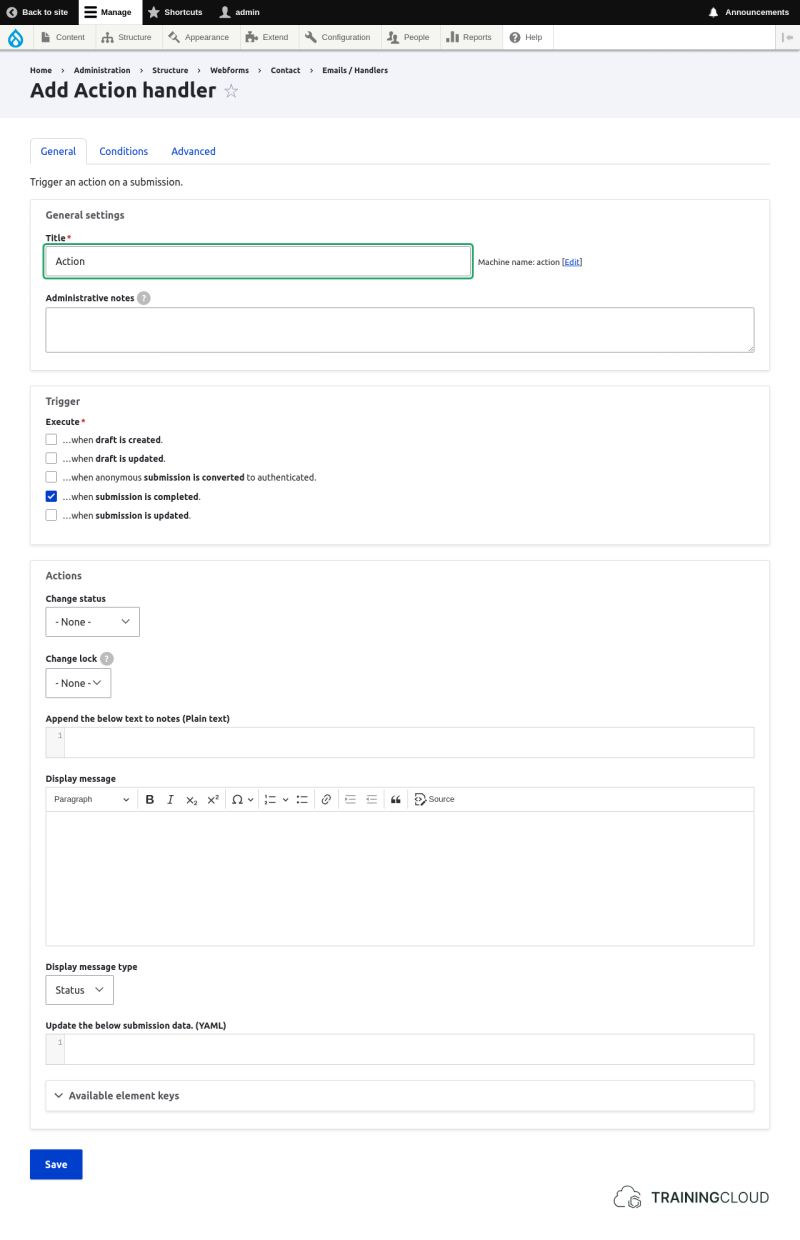
Events / triggers include:
- draft is created
- draft is submitted
- submission is completed
- submission is updated
Actions include:
- changing submission status
- adding a note to the submission
- displaying a status/warning/error message
Type: Debug
A Debug handler shows the submitted webform values on screen in the JSON or YAML formats:
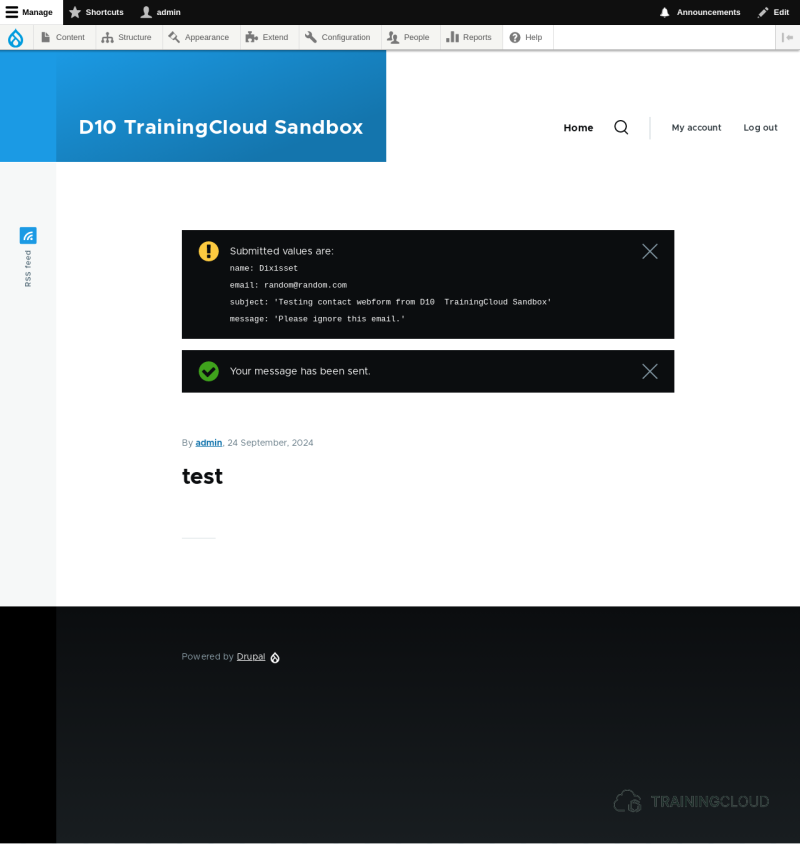
As a developer, adding this handler while you're testing your form gives you more visibility into submitted data. This can be useful if you're debugging the sending of webform submission data to an external system.
Activity 1
- Add a Debug handler to any form, submit the form, inspect the debug information, and make a screenshot.
- Change the Debug handler's Data format from
YAML(default) toJSON, submit the form again, and compare the JSON debug information with the YAML information in the screenshot to see the difference.
Type: Remote Post
Remote Post handlers let you send webform submission data to external systems via an HTTP request, when a submission is completed, updated, or deleted.
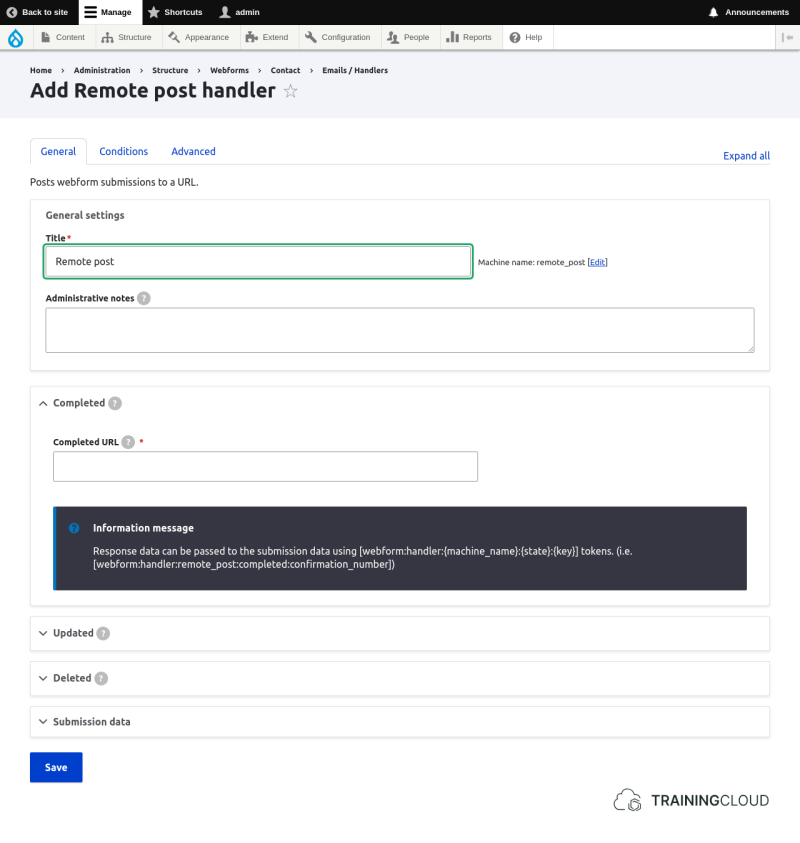
This is a more advanced feature, but very powerful, as it lets you send structured data to other systems without having to write any Drupal code.
We will cover this handler in detail in a next unit.
Type: Settings
A Settings handler lets you override the webform's settings, usually based on certain conditions and/or submitted data:
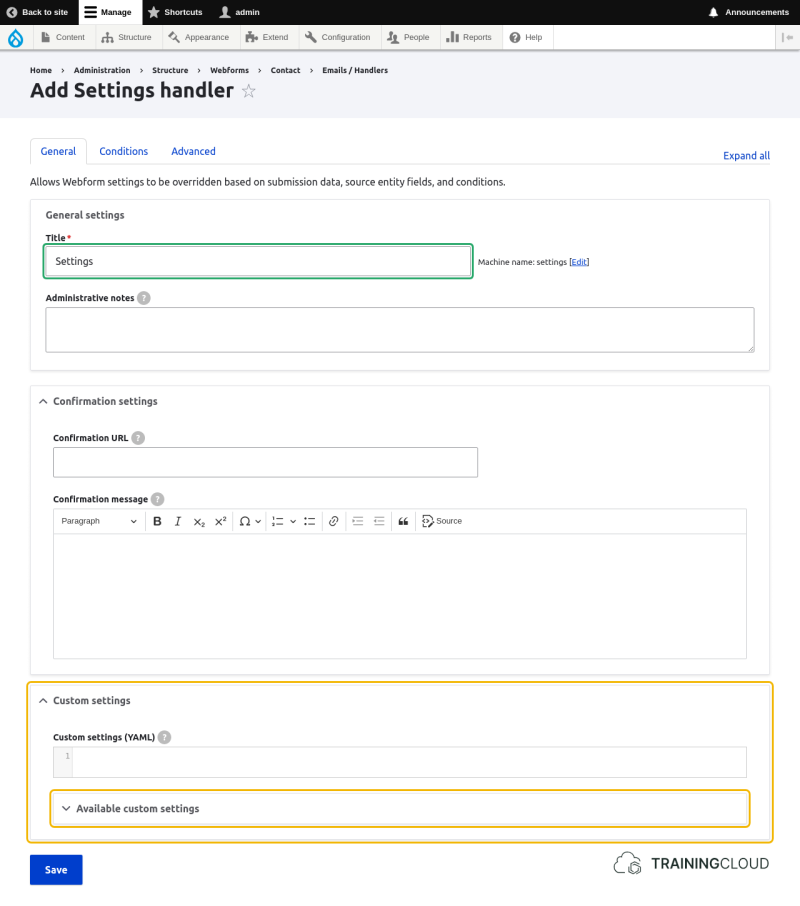
Opening the Available custom settings fieldset reveals dozens of webform settings you can override - too many to list and discuss here.
Example:
You could override the confirmation message if a certain form element has a certain value. To do so, you would add the new confirmation message in the handler's _Confirmation message" field.
In the handler's Conditional settings, you would add a logical rule that is equivalent to:
ENABLED IF [name-of-field] EQUALS [some value]Conditions
You can apply conditional logic to handlers in the same way you can apply conditional logic to fields.
When doing so for handlers you are restricting the handler by adding conditions that must be met before the handler is executed.
Example:
You could set up a mail handler, and add a conditional rule that it should only send a confirmation mail if the "Send me a copy of this message" checkbox is selected.
Activity 2
Duplicate the contact form. Add a "Send me a copy of this message" checkbox. Change the confirmation mail handler to only send mail if this checkbox is selected.
Summary
- Webform handlers let you execute tasks, potentially based on submitted form values.
- The default handlers available are:
- Action
- Debug
- Remote Post
- Settings
- The most common webform handlers are:
- Remote Post