These settings all relate to managing, accessing, and displaying the form's submissions.
General settings
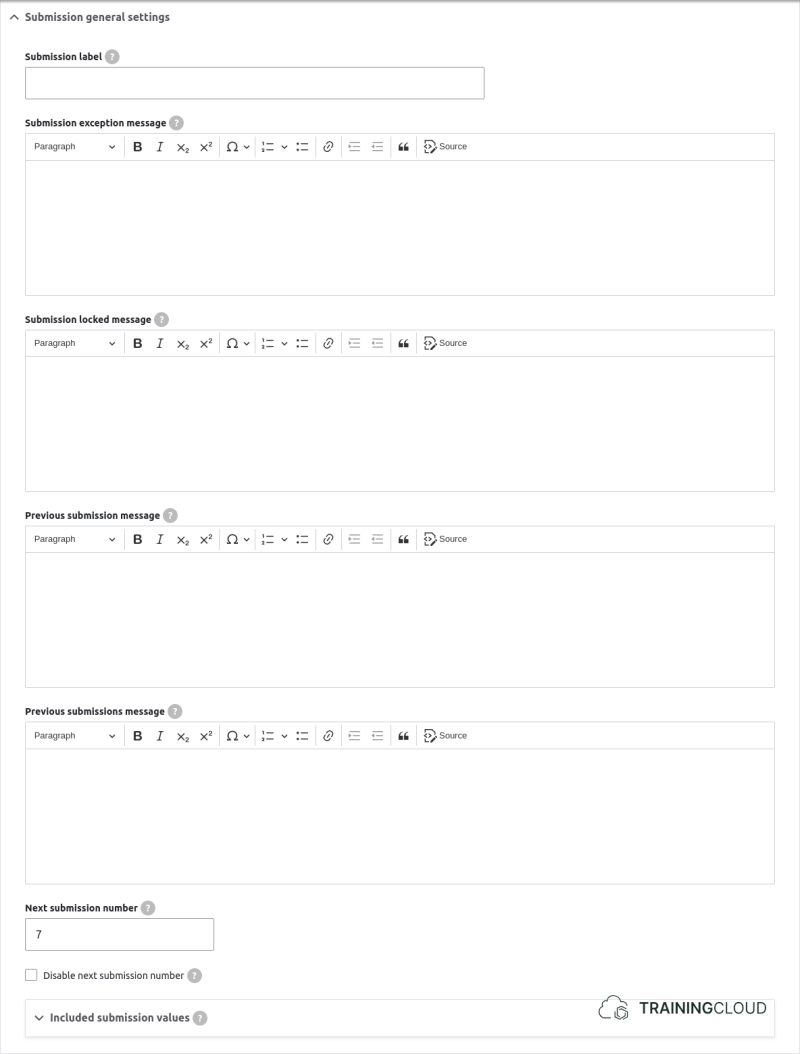
Messages
These settings let you customize various messages, such as when errors occur, when submissions are locked, or when the user has already submitted the form.
Included submission values
This fieldset lets you exclude certain fields from being displayed in the submissions table. The data for those fields is still saved to the database and available in custom queries and your own view(s) of webforms submissions.
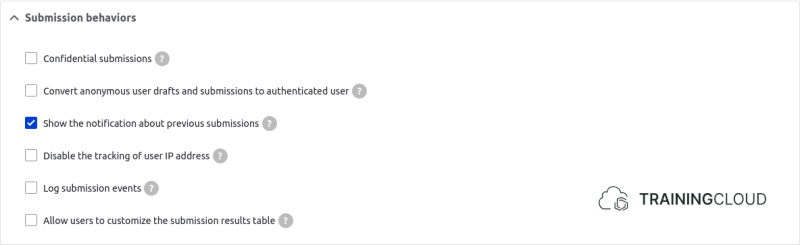
Behaviors
These settings mostly deal with privacy issues, such as not recording the IP address and forcing users to log out.
You can also assign ownership of all anonymous submissions to a certain registered user.
User settings
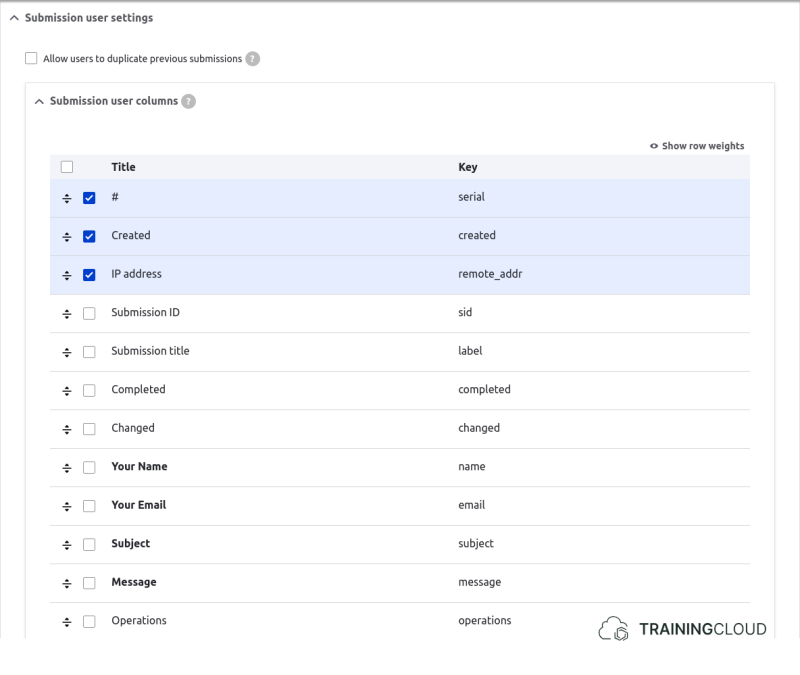
Specify which columns are displayed to users who can view previous submissions and/or pending drafts.
Access token settings

If users, such as anonymous visitors, don't have permissions to view, update, or delete webform submissions, you can still allow them to perform these actions using special tokenized URLs such as:
/webform/contact/submissions/7?token=i3lXD3zYDx-nVRx9fu5alyRz2UEOUD_HtWJUWarning:
this feature overrides other access control mechanisms: if a user does not have the correct permissions to view/edit/delete submissions, but tokenized access is enabled, that user will be able to perform those actions.
Limit settings
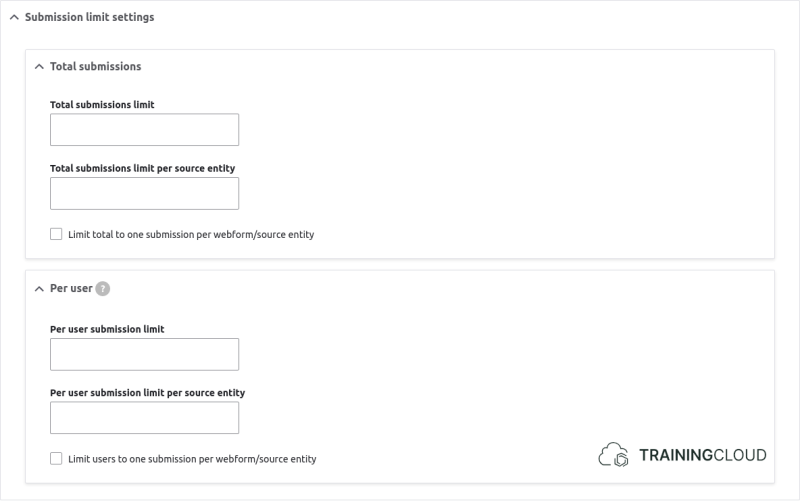
You can limit the number of submissions a webform can receive by using a combination of criteria, such as:
- limit the total number of submissions for this form
- limit the number of submission for this form, per user
Limit based on source entity
A webform can stand alone and/or be attached to a node, block, paragraph, or other entity. The entity it is attached to is called the webform's source entity.
Example:
You have a Content Type that represents events and has a webform reference field. You then create one single registration webform and set the Event CT's webform reference field to always reference that webform. The webform's source entity will then be the Event node's ID, and you'll be able to link every submission back to its "parent" entity, the source entity.
You can then decide if your registration form:
- limits the total number of submissions (regardless of user or source entity)
- limits the submissions per user
- limits the submissions per source entity
In the above example, it would make sense to limit the form to 1 submission per user per source entity:
- a user can't submit the registration form more than once for the same event
- a user can submit the registration form more than once if they're registering for an event they hadn't registered for before.
Purge settings
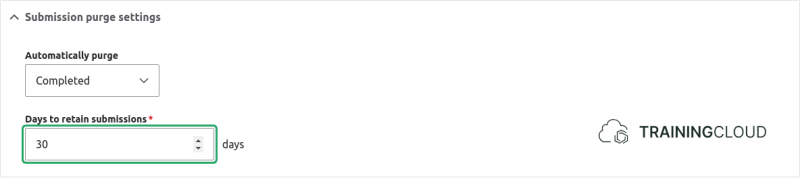
You can automatically purge (remove) webform submissions after any number of days.
You set this up for both draft submissions and completed submissions.
Draft settings

If you have long or complex forms, you can let users save their form submission as a draft.
You can do this for both anonymous and authenticated users. However, for unauthenticated users to be able to use this feature, they must allow browser cookies and they must not remove their cookies before the final form submission.
Autofill settings

If you allow users to submit the same form multiple times, you can also prepopulate the form with previously submitted field values.
Views settings
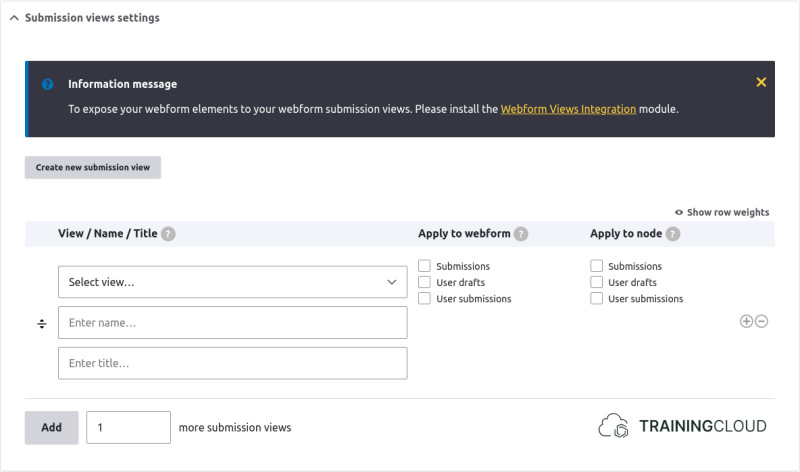
You can replace the default view that used to show all submissions for a certain webform (Administration > Structure > Webforms > your-form-name > Results > Submissions), or add one or more custom webform submissions views.
This lets you, as a site builder, give your site editors different ways of accessing the webform results: a basic overview, an overview with all field values, etc.
You should only customize these settings if you want to create multiple webform submission views and make those accessible inside the webform submissions administration interface (as opposed to creating a webform submissions view and simply using its "path" to access it).