Objectives & prerequisites
- Disable CSS & JS aggregation
- Disable browser caching / proxy caching
- Disable Twig cache
- Disable other caches
- Show template suggestions in source code
- Enable Twig's
dump()function to inspect variables
Overview
In this unit you'll learn where and how to disable various cache settings and enable Twig's development mode for easier debugging and template discovery.
When you are developing custom modules or themes, you frequently have to clear Drupal's caches to ensure you're seeing fresh, up-to-date output. To avoid having to clear the cache all the time, you can configure Drupal to temporarily cache fewer things.
Even when you don't have to clear your cache all the time, it can be hard to understand which template files are being used on any given page, and which ones can potentially be used, depending on the theme's inheritance chain and available template hints.
Lastly, Twig offers a dump() function that lets you inspect variables, but it is not enabled until Twig's development mode is activated:
Drupal Performance Settings
The first thing to do when you're developing is to disable the standard performance-enhancing settings at Administration > Configuration > Development > Performance:
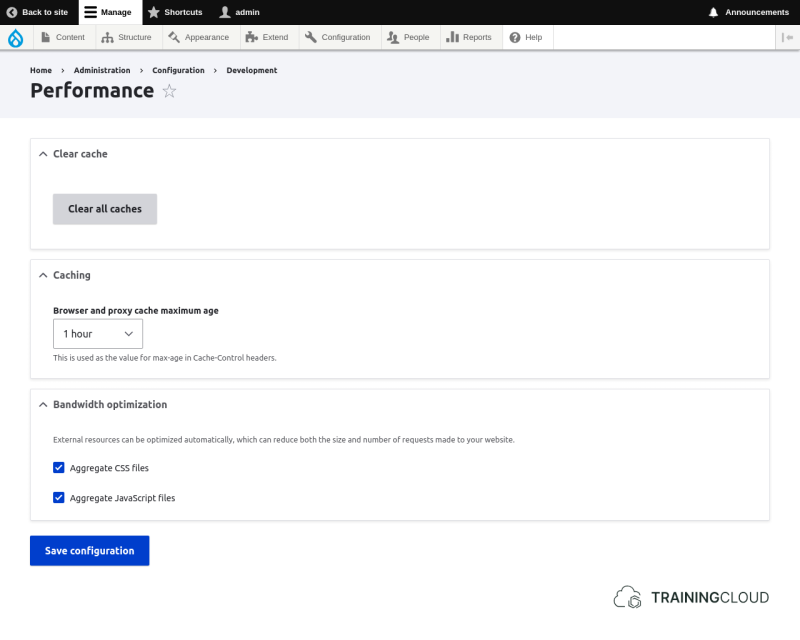
Browser and Proxy Cache Maximum Age
This setting instructs how long browsers and shared caches (external optimisation solutions like proxy servers, web accelerators, and Content Delivery Networks) should keep cached content.
→ Set the value to <no caching>.
If you're curious, this setting is used as the value for the max-age directive in the Cache-Control HTTP header field that is sent as part of each HTTP request and response.
Bandwidth Optimization
Drupal can aggregate and minify CSS and JS files - combine them into a small number of css files and remove all unnecessary characters (comments, line breaks, some blank spaces, ...). This reduces:
- the number of files the browser must request
- the total size of CSS/JS data sent from server to browser
→ Ensure that both the CSS and JS Aggregation options are disabled.
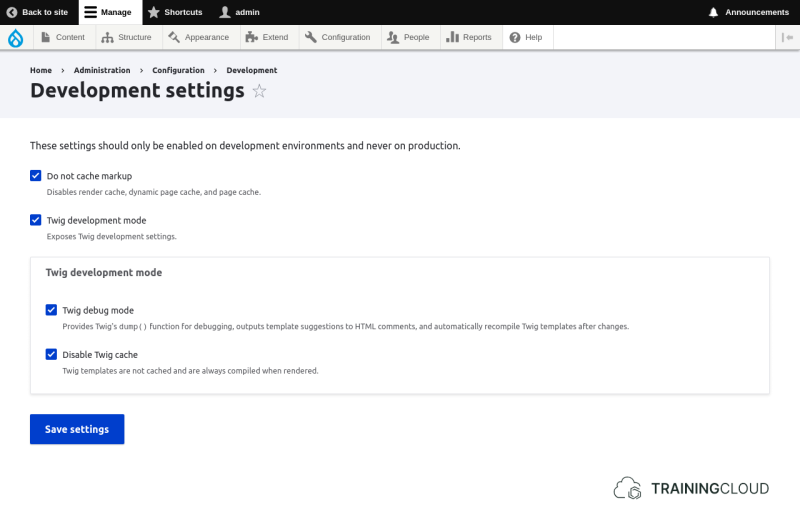
Do not cache markup
This setting disables caching of bits of markup (html).
→ ensure this setting is enabled.
Twig development mode
This setting makes two new development settings appear.
→ ensure this setting is enabled.
Twig debug mode
This setting enables Twig's dump() function for variable inspection:
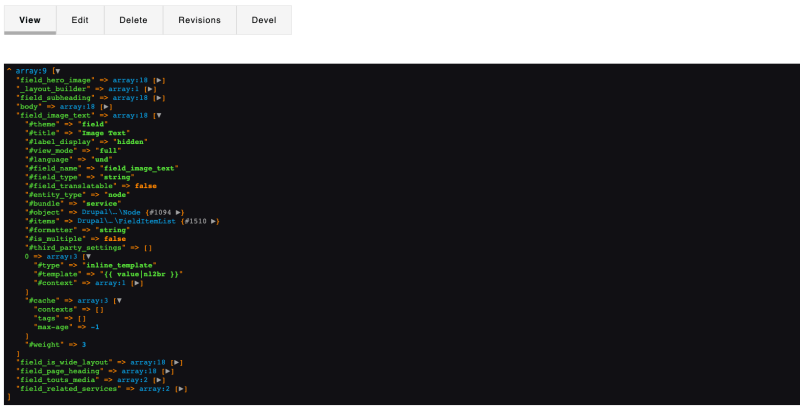
→ Image credits: drupal.org/u/mherchel (CC BY-SA 2.0)
Twig Development Mode (D10.1+)
A new "Development settings" page was added under Administration > Configuration > Development > Development settings:
Twig's debug mode also adds Twig template suggestions to your HTML source code, and will automatically recompile Twig templates when they are modified.
Note that you will still need to clear your caches each time after adding a new template file. However, as you start making changes, you won't need to keep clearing the caches.
→ ensure this setting is enabled.
Example
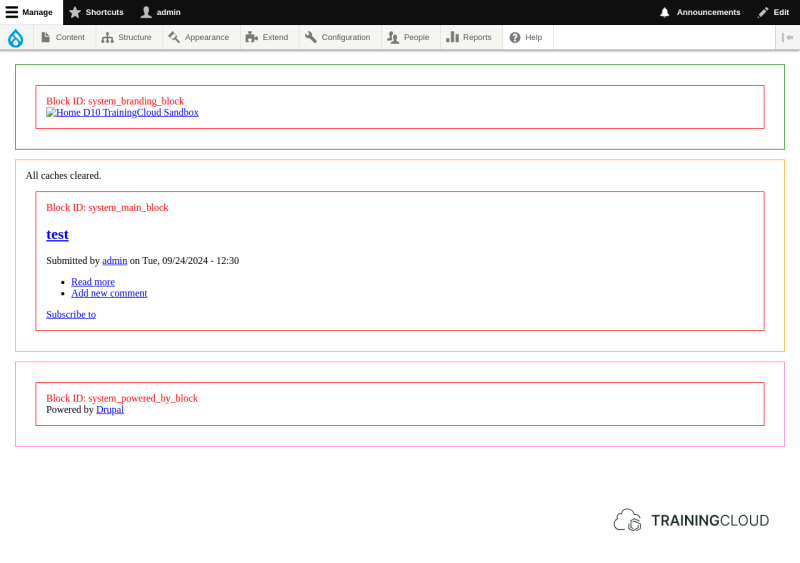
The following example shows the partial output of the Drupal frontpage, with mytheme set as the default theme, and Twig debug mode enabled. Specifically, this example shows the markup for the "Powered by Drupal" block.
The green comments show which template files Drupal tried to locate, in the order it tried to locate them (from more specific to more generic, as prescribed by the theme inheritance system):
block--mytheme-powered.html.twigblock--system-powered-by-block.html.twigblock--system.html.twigblock.html.twig
Since none of the more specific template files are used anywhere in the theme inheritance chain, the most generic template file for blocks (block.html.twig) provided by your theme (mytheme) is used.
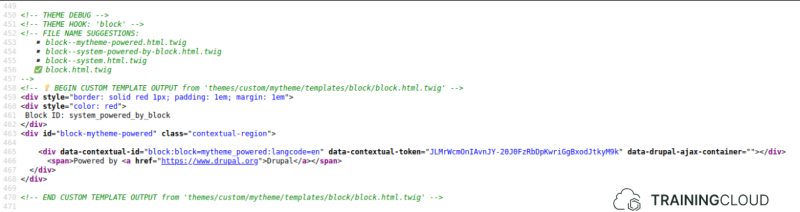
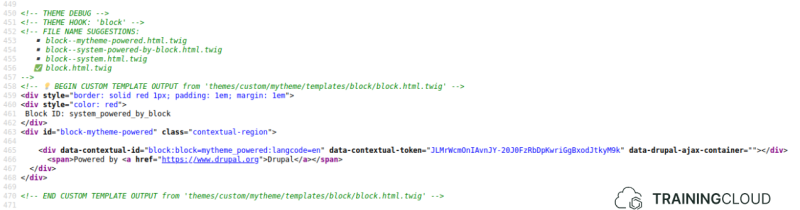
If you were to duplicate the themes/mytheme/templates/block.html.twig file (that you previously added to override the generic template for all blocks), rename it to block--mytheme-powered.html.twig, clear caches (you added a new template file!), and reload the page, the template hints in the source code will now show that the new template file is being used for that block:
If you change the CSS border colour to "purple" in block--mytheme-powered.html.twig, the change to a purple border will be visible in the frontend as well:
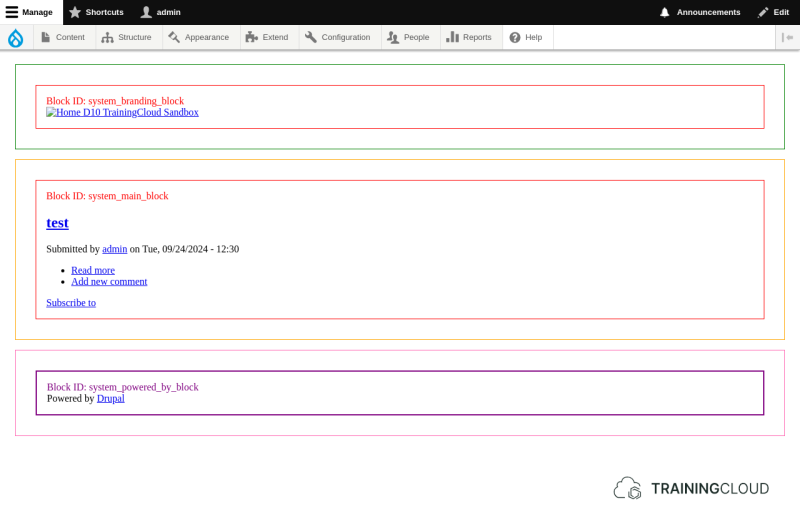
Now that you have successfully overridden the "Powered by Drupal" template file, you can keep customising it to fit your needs. Due to its name, the template is so specific that it will only affect the "Powered by Drupal" block; no other blocks will be affected.
Disable Twig cache
This setting prevents compiled Twig code from being cached. As a result the required Twig templates are recompiled on each page request.
→ ensure this setting is enabled.
Twig Development Mode Before D10.1
See https://www.drupal.org/docs/develop/development-tools/disabling-and-debugging-caching#s-disable-twig-cache-manually-the-old-way for more ways to enable development settings and disable various caches on sites older than Drupal 10.0.
Activity 1A
View the source code of your front page. Which template is being used to generate the <html> and <head> tags? Where does this template come from (who or what provides it?)
Activity 1B
Why is Drupal selecting core/themes/stable9/templates/layout/html.html.twig instead of core/modules/system/templates/html.html.twig?
Activity 1C
Under which condition would Drupal use core/modules/system/templates/html.html.twig?
Activity 1D
Which steps would you take to make mytheme override html.html.twig?
Summary
- At Administration > Configuration > Development > Performance:
- Disable CSS & JS aggregation
- Disable browser caching / proxy caching
- At Administration > Configuration > Development:
- Disable markup caching
- Enable Twig development mode
- Enable Twig debug mode
- adds template hints to source code
- enables
dump()Twig function
- Disable Twig cache
- Enable Twig debug mode
- Even with all development settings enabled and all caching disabled, you still have to clear the cache after adding new template files to your theme.