Objectives & prerequisites
- Declare custom theme regions.
- Modify template file(s) to ensure custom theme regions are rendered as expected.
- Explain the process of overriding a template.
- Explain the steps to take to determine which template file(s) to override.
- Explain under what circumstances Drupal falls back to its default theme regions.
- List the required theme regions, if any.
- List the hidden theme regions, if any.
- Basic administrative experience building or managing a Drupal site.
- Managing block placement
Theme regions are declared in the info file
Theme regions are the page layout areas with names like Header, Content, Sidebar, and Footer, where you, as a site builder, can place content blocks.
You can define theme regions in your theme's info file, using the regions key. Here's an example of the Olivero theme's regions:
regions:
 header: Header
 primary_menu: Primary menu
 secondary_menu: Secondary menu
 hero: Hero (full width)
 highlighted: Highlighted
 breadcrumb: Breadcrumb
 social: Social Bar
 content_above: Content Above
 content: Content
 sidebar: Sidebar
 content_below: Content Below
 footer_top: Footer Top
 footer_bottom: Footer Bottom
File: /core/themes/olivero/olivero.info.yml
Each of Olivero's regions is specified as a key:value pair, with the key being the region's internal name (also called machine name), and the value being the human-readable label.
Default theme regions
Your theme does not have to specify any regions. If it does not, Drupal's default theme regions are used:
regions:
 sidebar_first: Left sidebar
 sidebar_second: Right sidebar
 content: Content
 header: Header
 primary_menu: Primary menu
 secondary_menu: Secondary menu
 footer: Footer
 highlighted: Highlighted
 help: Help
 page_top: Page top
 page_bottom: Page bottom
 breadcrumb: Breadcrumb
(If you're curious: all of the default theme properties, including regions, are specified in /core/lib/Drupal/Core/Extension/ThemeExtensionList.php)
If your theme declares even one single theme region, the default regions no longer apply.
If your theme wants to add one single region, it must redeclare all the default regions it wants to use as well as the one additional region.
Activity 1
Your mytheme.info.yml doesn't declare any theme regions (yet), but you do see 10 regions listed in the block region demonstration at Manage > Structure > Block Layout > Demonstrate block region.
Where did those regions come from?
Activity 2
What would happen if you add the following to your theme's info file?
regions:
 top: Top
 content: Content
bottom: Bottom- Ensure your theme is the active theme.
- Add the top/content/bottom regions to your info file, clear your cache, and reload the homepage. How does it look? Is anything different? Why (not)?
Activity 2B
Navigate to the theme region demonstration page and inspect your regions. Which region(s) do you see listed, and what do they contain?
Activity 3
- Assign the Site branding block to your theme's
Topregion. - Assign the Powered by Drupal block to your theme's
Bottomregion. - Reload the homepage and verify if your blocks are being shown.
You have assigned one or more blocks to the Top and Bottom region. After reloading your homepage, those blocks are still not showing up. Only the block(s) assigned to the Content region are visible.
Can you guess why?
Declaring new theme regions
Declaring new regions in your info file overrides the default theme regions. To do so, provide the regions as children key pairs of the Regions key:
Regions:
 my_region: My region
 my_other_region: My other region
 sidebar: My sidebar
Once you have declared new theme regions and saved the info file, clear your caches and reload your homepage. Your new regions should now show up on Manage > Structure > Block layout.
You are able to assign blocks to your new regions, but those blocks will not yet show up when you reload the homepage, because you now need to tell Drupal where in your page layout those regions must show up.
Making new theme regions visible
Once you've declared (new) regions in your info file, you need to customise the page.twig.html template, which defines how and where all page regions on all pages are rendered.
Your theme does not contain this file yet, so you must copy it from somewhere and modify it so it renders your new regions.
If your theme contains page.html.twig, Drupal will use it. If it doesn't, Drupal will look at the base theme, and the base theme's base theme, and so on, until it falls back to Drupal's default regions.
This theme inheritance mechanism is discussed in detail later.
Activity 4
Your theme uses a base theme (Stable9), which contains a version of page.html.twig. Copy that file into your own theme directory.
Activity 4b
Open the copied page template file and inspect it. The first part is documentation; the lower part is a mix of Twig and HTML.
As Stable9's page.twig.html comments mention, you can render the contents of every region by printing the page.name_of_region variable:
Regions:
- page.header: Items for the header region.
- page.primary_menu: Items for the primary menu region.
- page.secondary_menu: Items for the secondary menu region.
- page.highlighted: Items for the highlighted content region.
- page.help: Dynamic help text, mostly for admin pages.
- page.content: The main content of the current page.
- page.sidebar_first: Items for the first sidebar.
- page.sidebar_second: Items for the second sidebar.
- page.footer: Items for the footer region.
- page.breadcrumb: Items for the breadcrumb region.
When you inspect the template file, you see that those variables are being printed with the {{ name_over_variable }} Twig syntax:
[...]

<header role="banner">
  {{ page.header }}
</header>

{{ page.primary_menu }}
{{ page.secondary_menu }}

{{ page.breadcrumb }}

{{ page.highlighted }}
[...]
However, in your theme's info file you have overridden the regions and specified our own three regions:
regions:
 top: 'Top'
 content: 'Content'
 bottom: 'Bottom'
Inspect the template file and try to work out which changes you would make so the regions show up. You don't have to make those changes yet... just think about the problem.
Activity 5
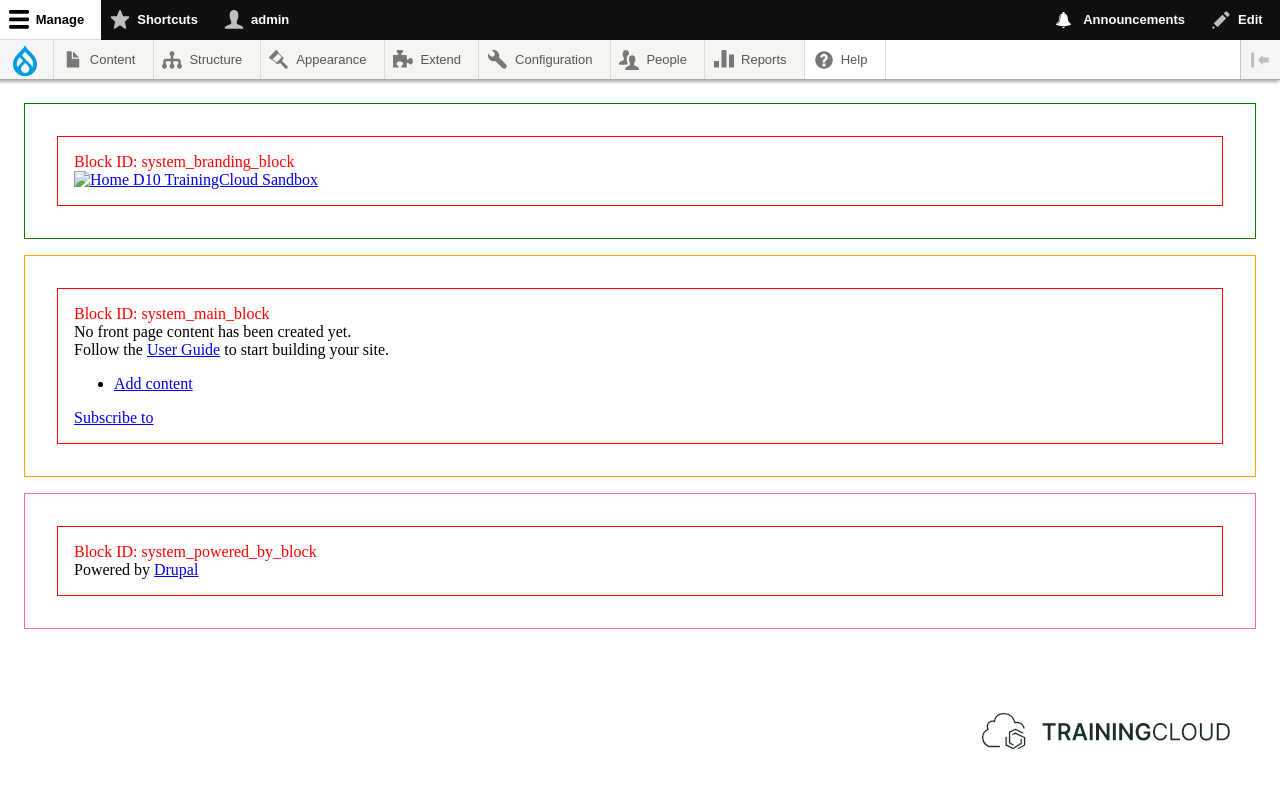
During this activity you will update your page template file to remove code that refers to the default regions that are no longer available, and add code to render the new regions.
In your page.html.twig, remove everything between
<div class="layout-container"> and
</div>{# /.layout-container #}In its place, add the following, which prints the contents of your three regions, each wrapped in a div with different coloured borders:
<div style="border: solid green 1px; padding: 1em; margin: 1em">
 {{ page.top }}
</div>
<div style="border: solid orange 1px; padding: 1em; margin: 1em">
 {{ page.content }}
</div>
<div style="border: solid hotpink 1px; padding: 1em; margin: 1em">
 {{ page.bottom }}
</div>
Save file, clear cache, reload homepage. The result should look like this:
Block placement is configured per-theme
When you override and remove theme regions, blocks that were placed in one of the now-removed regions will automatically be disabled and moved to the topmost region.
The same happens for the exact same reason when you select a different theme as your site's default theme. If it has different theme regions than the previously active theme, some blocks will be disabled and moved to the topmost region.
In other words: the placement of blocks depends on the currently active theme and the regions it makes available.
Required regions
In earlier versions of Drupal, the content region was required. This is no longer the case.
Any output that is available on its own page (such as node content, a view with a page display, a form on its own page, ...) is made available through the Main page content block.
If you remove the content region, the Main page content block will be automatically disabled and moved to the topmost region; it will no longer be rendered.
Be sure that the Main page content block is always enabled and placed in one of your regions. If it's not, much of Drupal's content will never be rendered.
Hidden regions
Drupal uses two hidden regions: page_top and page_bottom.
Certain modules expect those regions to exist and place things in there such as JavaScript code for analytics, or the dropdown menu you see at the top of the page if the Admin Toolbar module is installed.
As a site builder, you are not supposed to place anything in there via the administration interface.
You don't need to specify these two hidden regions in your info file, but their corresponding twig variables should be printed in one of your template files.
If you're curious: Stable9 prints these special regions as {{ page_top }} and {{ page_bottom }} in its html.html.twig file:
[...]

<body{{ attributes }}>
  {#
    Keyboard navigation/accessibility link to main content section in
    page.html.twig.
  #}
  <a href="#main-content" class="visually-hidden focusable">
    {{ 'Skip to main content'|t }}
  </a>
  {{ page_top }}
  {{ page }}
  {{ page_bottom }}
  <js-bottom-placeholder token="{{ placeholder_token }}">
</body>

[...]
Note that the contents of the {{ page }} variable in html.html.twig is driven by the page.html.twig template that you modified earlier on.
Summary
- Themes have regions.
- Theme regions are declared in a theme's info file, or in their base theme's info file.
- If neither your theme nor any of the base themes in the inheritance chain declare any regions, Drupal's default regions are used.
- If you declare your own regions, you MUST also override
page.html.twigand add your regions there, otherwise they will never be rendered. - If you override the regions and you do not declare the content region, ensure the Main page content block is assigned to one of your regions.
- No regions are required.
- Regions can be declared as hidden and used for special purposes other than rendering blocks. Ensure you do not remove the variables that render the core page_top and page_bottom regions that core and some contributed modules rely on.