Objectives & prerequisites
- List the 3 core themes available in the administration interface.
- Explain why 2 core themes are hidden.
- Use the admin interface to install, configure, and uninstall themes.
- Use drush to install and uninstall themes
- Describe the difference between "standard" themes and administration themes.
- Use the admin interface to select which administration theme to use.
- Compare global theme settings to per-theme settings.
- Basic administrative experience building or managing a Drupal site.
- Basic experience using Composer to fetch (require) Drupal extensions.
Core Themes
As of Drupal 10.3, the following themes are included in Core and available via the administration interface:
- Olivero
- Claro
- Stark
The following core themes are also available, but hidden in the administration interface:
- Stable9
- Starterkit_theme
These themes are hidden because they are not meant to be enabled directly, but for you to use as a base theme.
Olivero
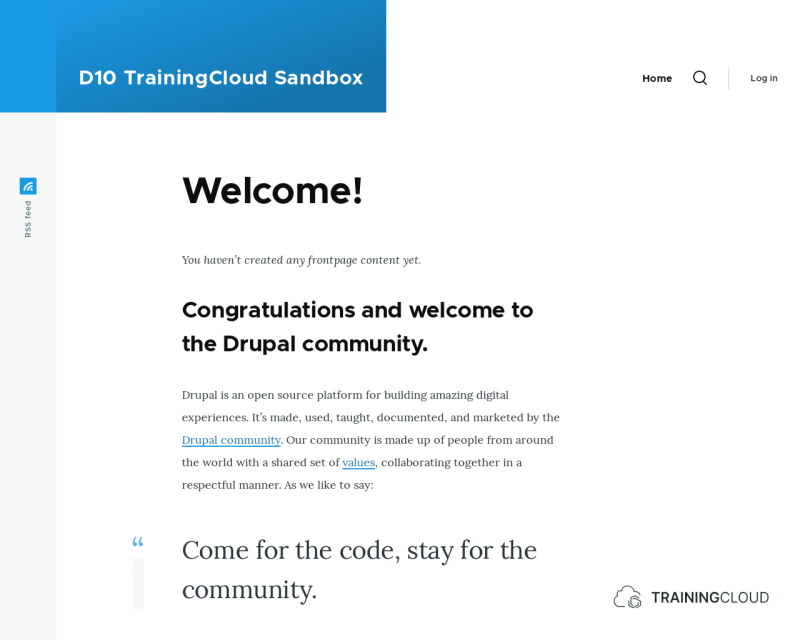
Drupal enables Olivero as the default user-facing theme upon installation. It is a clean and simple theme that supports the color module and makes excellent use of regions. In addition to the default regions Drupal recommends, the Olivero theme has seven custom regions for laying out blocks in the footer and sub-footer.
Claro
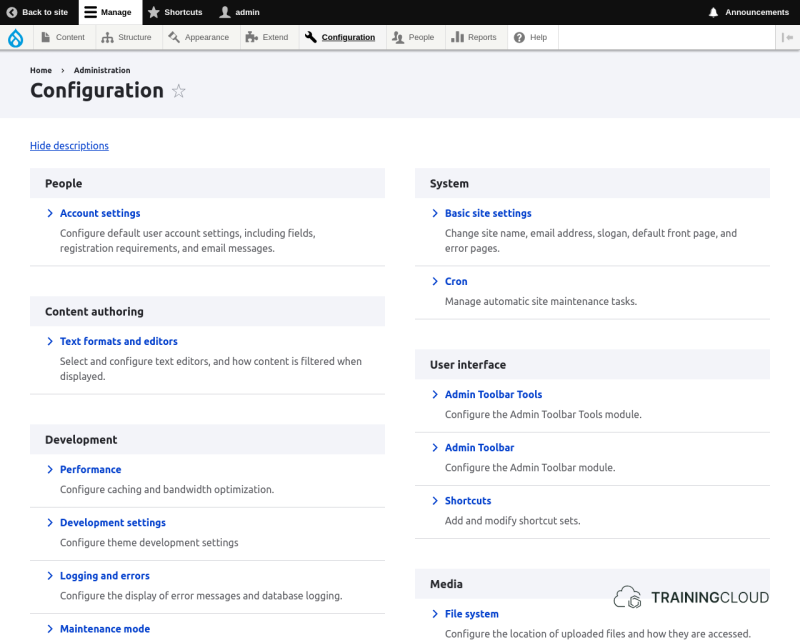
Claro is Drupal's default administrative theme. It contains very few regions and maximizes screen space; its focus is on performing administrative tasks.
Stark
Stark is a minimal Drupal theme. Its main purpose is to expose Drupal's default HTML and CSS. It does not provide any template files and hardly any CSS at all, other than basic layout styles that place the default sidebar regions.
Stark is a good theme for developers to code against when writing CSS for their modules. It can also assist theme developers when trying to troubleshoot issues where they're not positive if the problem is with their theme or another module.
Location of core themes
The core themes are located inside the /core/ directory /core/themes/:
<drupal_root>/
├─ core/
│  ├─ modules/
│  ├─ themes/
│  ├─ .../
├─ .../
→ <drupal_root> indicates the directory into which Drupal was installed. Also referred to as the document_root of your website.
Note:
NEVER modify any core modules or themes; doing so can make Drupal unstable and you will lose all your changes after the next core update.
You will learn later in this course that there are safe, controlled ways of extending and/or overriding functionality provided by core and contrib modules/themes.
Fetching new themes
Just like modules, themes are Drupal extensions, and must be fetched using Composer:
composer require drupal/name-of-the-themeOnce fetched with Composer, your theme will be saved to the correct location.
Theme locations
Contributed themes belong in: <drupal-root>/themes/contrib/.
Custom themes belong in: <drupal-root>/themes/custom/.
Please pay particular attention to the location of core themes versus the location of contributed or custom themes:
- Core themes are placed inside the
/core/directory. - Additional themes are placed outside the
/core/directory.
Installing and uninstalling themes
Using the administration interface
You can find the list of all your available themes at Manage > Appearance:
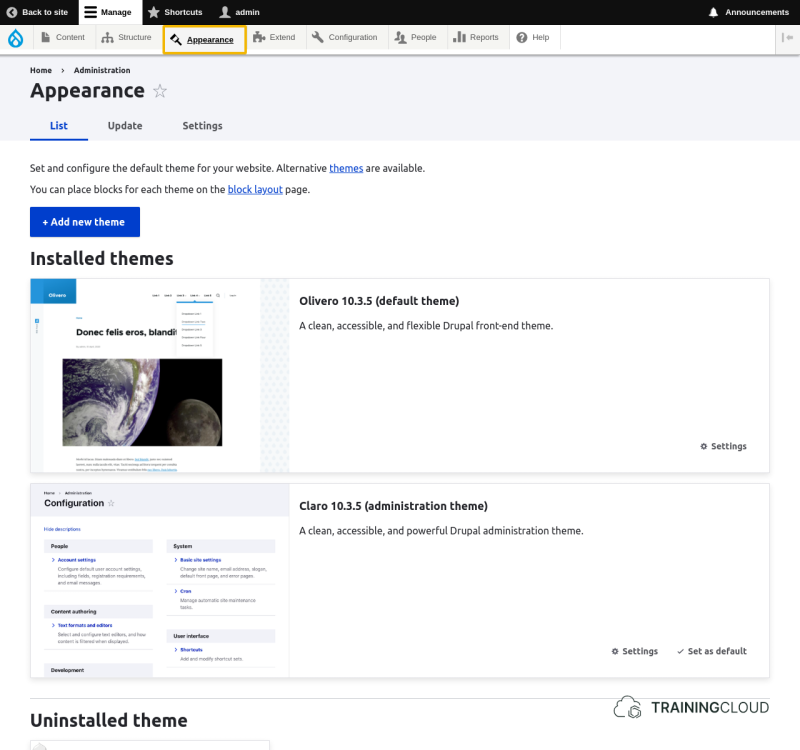
You can set any of the enabled themes as the default theme (also referred to as the active theme). Clicking on a theme's settings link leads to the configuration screen of that particular theme.
Using Drush
Once fetched using Composer, you can also use drush to install or uninstall a theme:
Installing a theme with drush
drush theme:install name_of_themeUninstalling a theme with drush
drush theme:uninstall name_of_themeSelecting an Administration theme
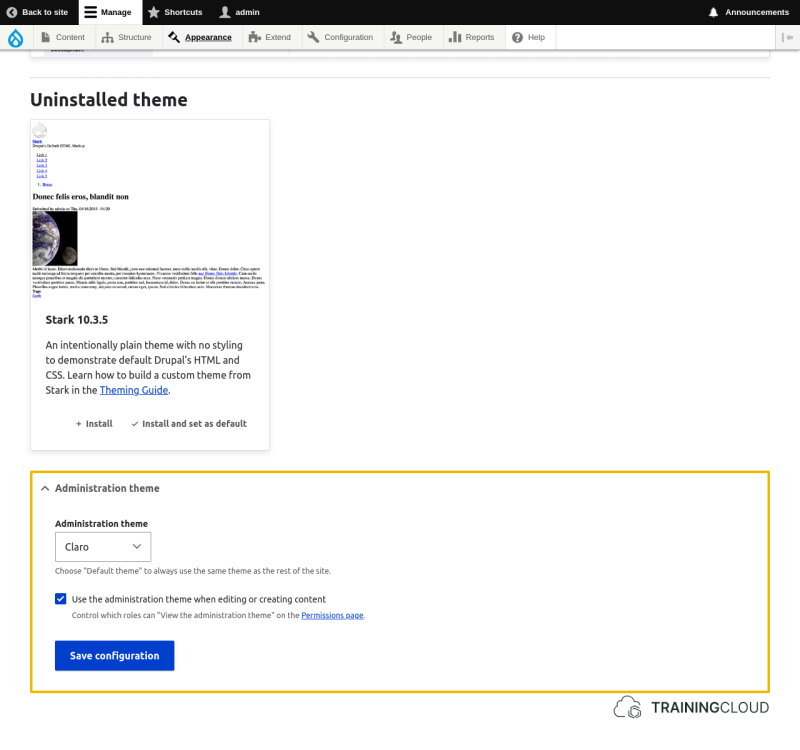
In addition to the default theme, you can also indicate which of the available themes should be used as the administration theme.
Often the theme you choose for the public facing part of the site is not particularly suited for administration screens which tend to require a simple and clean interface with as much available screen space as possible.
Global theme settings vs. per-theme settings
The configuration options for a particular theme consist of two parts:
General settings, inherited from the Global theme settings, that can be overridden on a per-theme basis.
Examples include settings for a colour scheme and which image to use for the site logo.
Settings provided by the creator of the theme, specific to that particular theme alone.
Let's say you install a theme that has a focus on being usable on mobile devices. Such a theme could provide settings related to how the layout of the site should behave on a small smartphone as opposed to a larger tablet device.
Activity 1
Via Manage > Appearance > Settings compare the Global settings with Olivero's settings.
- Which settings do they have in common?
- Which settings are specific to Olivero?
Activity 2
- Via Manage > Appearance change the administration theme from Claro to Olivero.
- Go through a few administrative pages and create some content and decide for yourself which theme you find more suitable for administrative tasks.
- Set the administration theme back to Claro.
Summary
- Drupal comes with a handful of themes, but you can install additional contributed themes or add your own.
- Fetch new themes with Composer and install them via the administration interface or use the Drush commands
theme:installandtheme:uninstall. - You can set the administrative theme independently from the public, user-facing theme.
- Apart from the global theme settings, each theme can have its own settings.