Build a 'More articles by this author' block
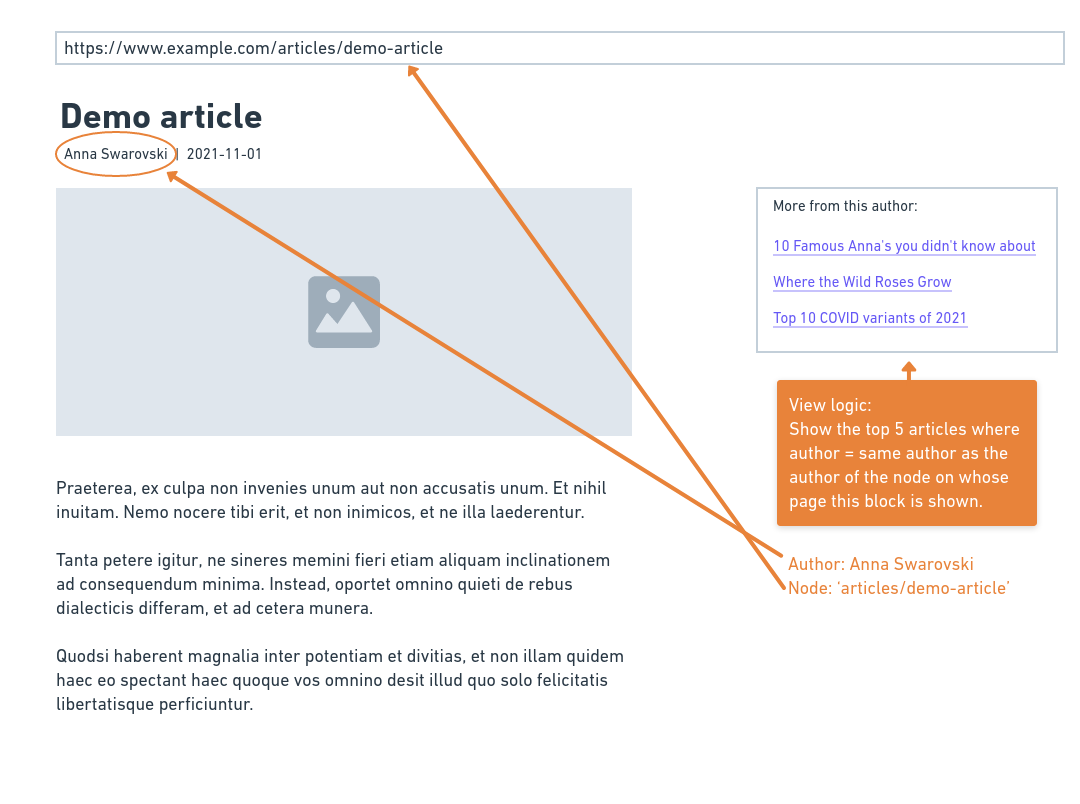
Build a views block that shows links to a maximum of 5 articles by the same author as the the author of the content on whose page this block is shown.
Here's a mock-up:
Steps to take
- Build a view of articles
- Add the right contextual filter so you filter User ID.
- Think carefully about what default value to set up for the contextual filter, if any.
- Place the block in the second sidebar
- Ensure the block is only shown for content of the type 'Article'.
Test your view
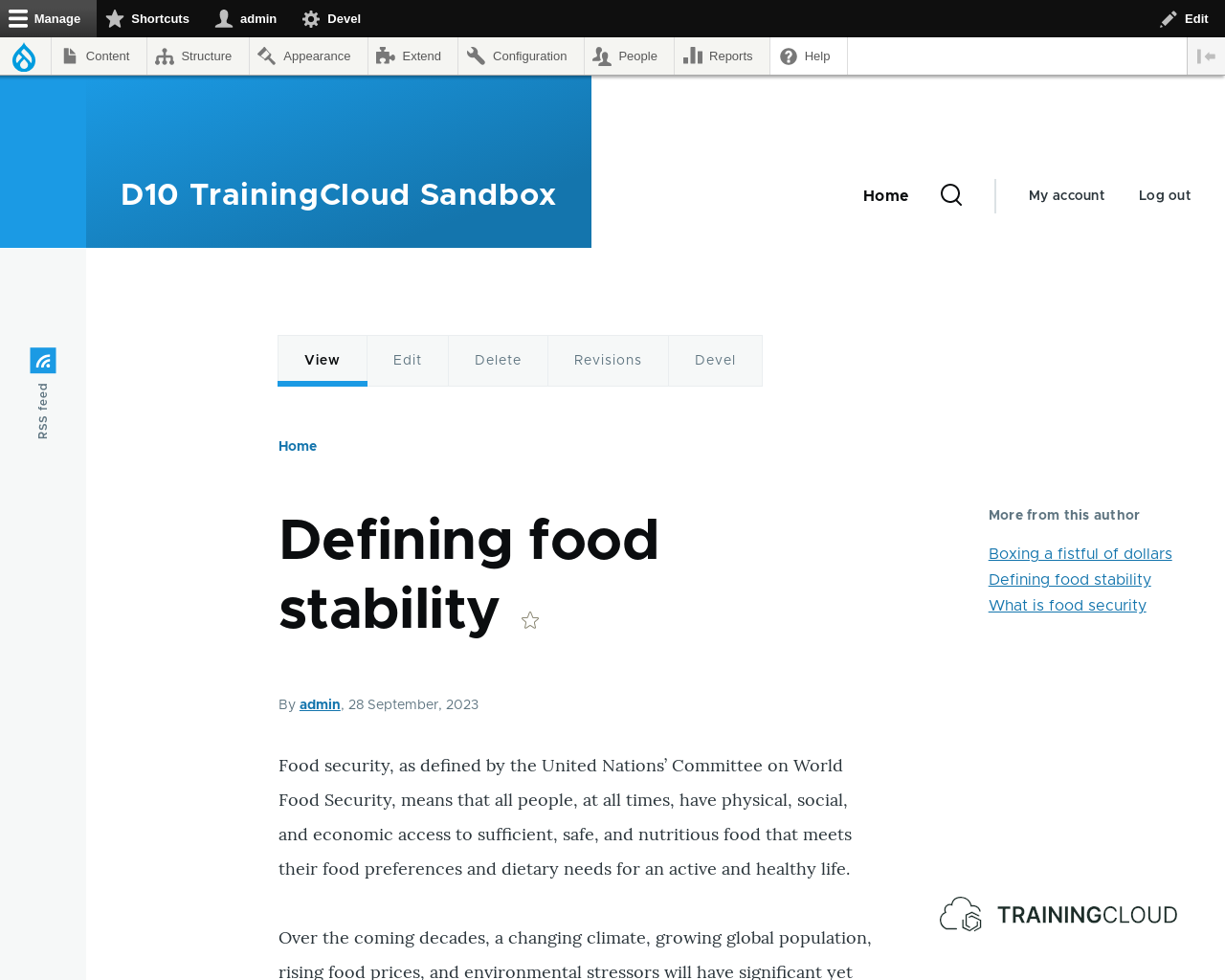
At this point your view should look similar to this:
Activity 4B: dynamic block title
The view's title is 'More from this user'.
It would be nice if we could make the title dynamic so it becomes 'More from Sarah Connor' or 'More from Khalil Gibran'.
The solution for this requires a few steps:
- Add the author's name to the fields to fetch from the database
- Dynamically override the title, using a variable to insert the author name
- Ensure the author's name is only shown in the block title, and not together with each of the article links in the view's output.
Let's go.
Step 1: Add the author to the fields
Before we can use the author's name, we need to add it to the fields we want to fetch from the database.
→ add a field to the view, search on 'author', add the 'Authored by' field. → configure the field to use the 'label' formatter to ensure the author's name is shown in plain text (not as a link).
At this point your view contains the right information.
Now we need to:
- Show the author name in the block title
- Not show the author name together with every article link
Step 2: Make author name part of the block title
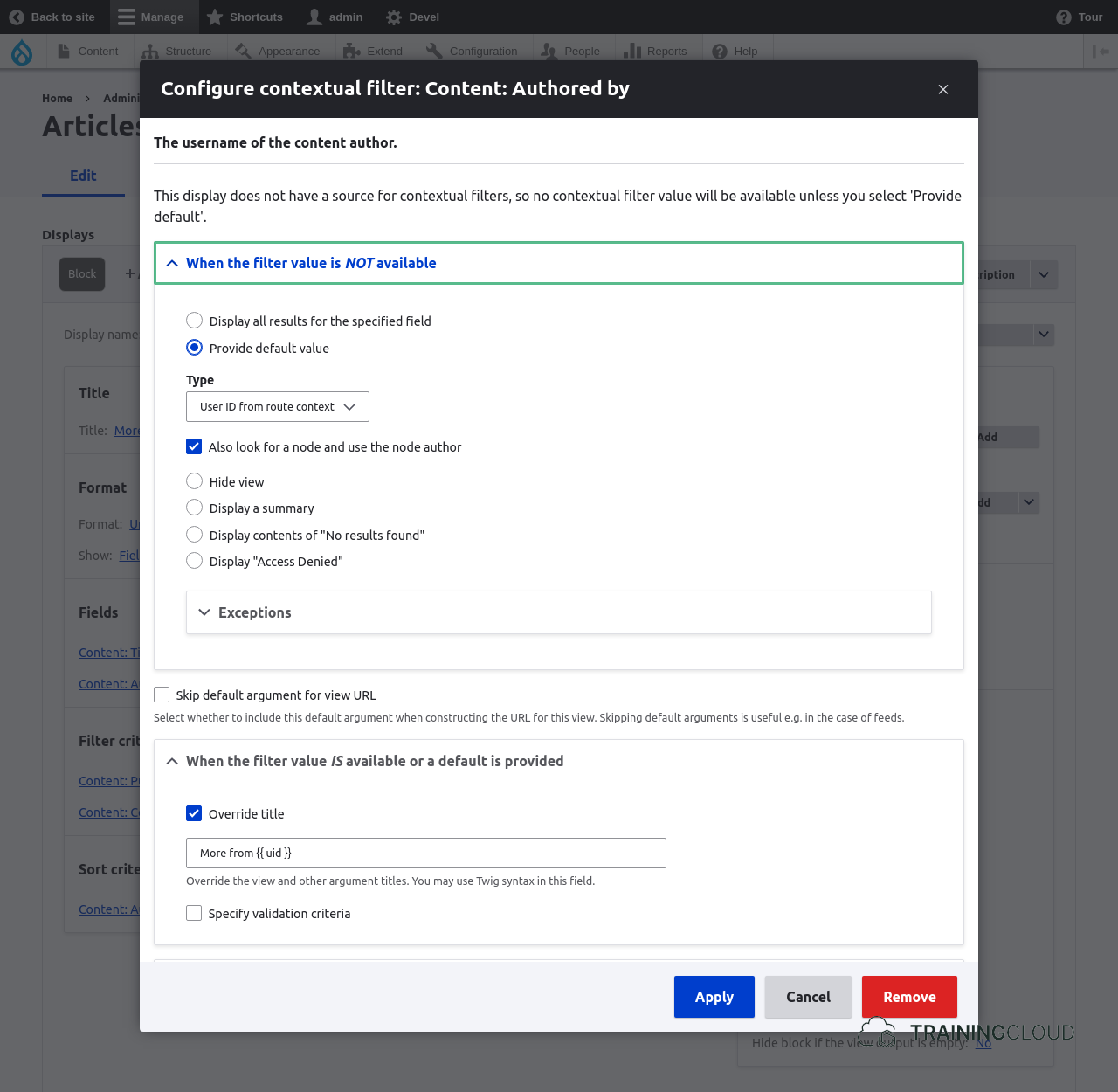
One of the configuration options of contextual filters is When the filter value IS available or a default is provided → override title.
→ edit your contextual filter → tick the 'override title' checkbox → add as dynamic title: More from {{ uid }}
{{ uid }} is a so-called 'replacement token'. Every field you add to your view is available for you to use in different places in your view's configuration, such as for making titles dynamic, or rewriting other parts of the view's output.
In any place where replacement tokens are allowed, you can use the name of the field, wrapped in two curly braces:
Examples:
- If your field is called 'name', the vield value is available as the
{{ name }}token. - If your field is called 'field_product_color', the corresponding token is
{{ field_product_color }} - And so on…
In this case, you need to use {{ uid }} because 'uid' is the name of the field that you just added to your view, and that you want to use.
Here's the full contextual filter configuration for this activity:
Save your view and test the result.
Your block's title should now change dynamically based on the author of the article you're looking at.
The last thing that's left is to not show the author name together with every article link.
Step 3: Avoid duplicating the author for every link
At this point, your block probably looks like this:
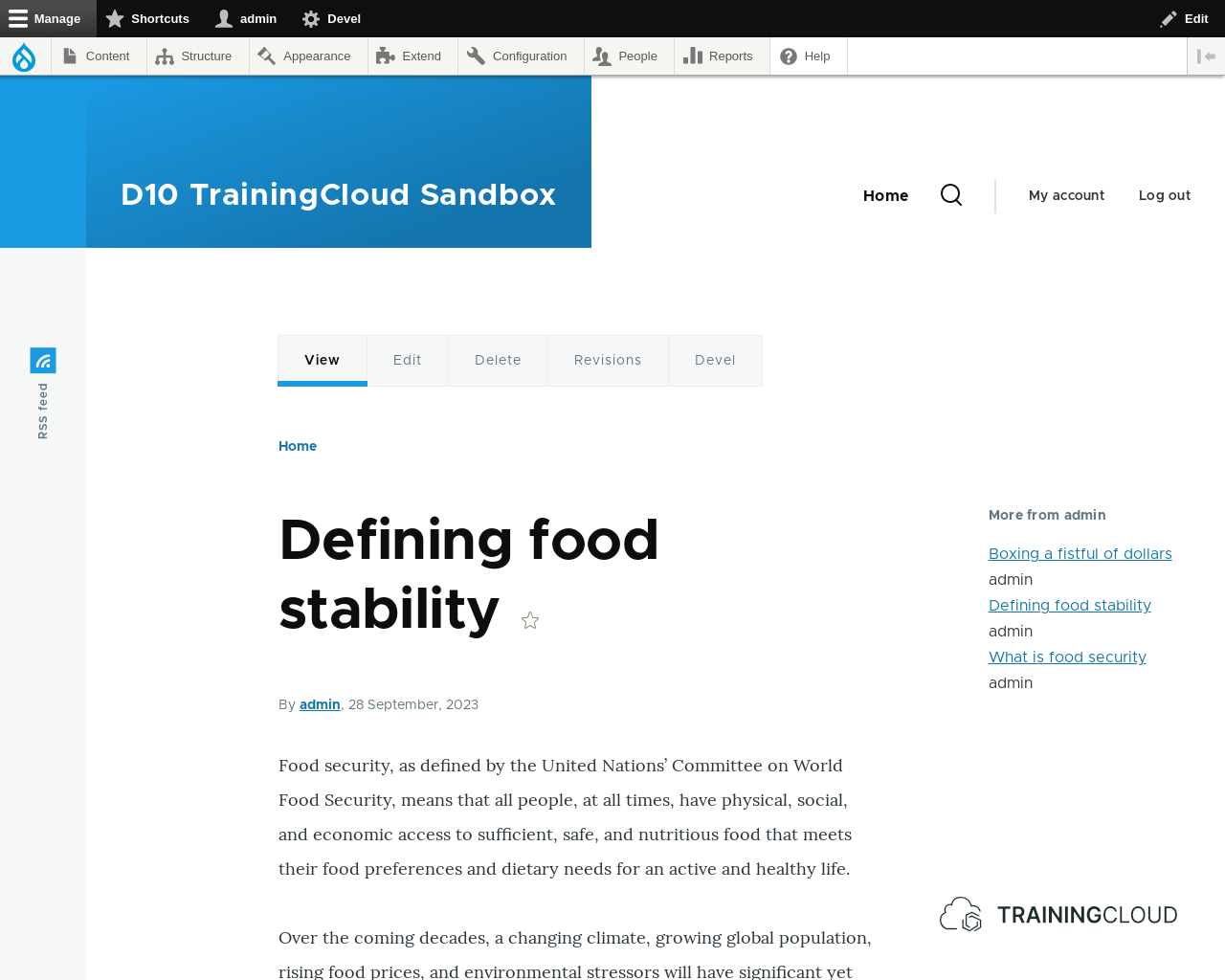
You could try to remove the 'Authored by' field from the view's list of fields, but then your dynamic title won't work anymore, because it relies on that field's presence.
Solution: exclude from display.
You can configure any field in your view's list of fields to be excluded from display:
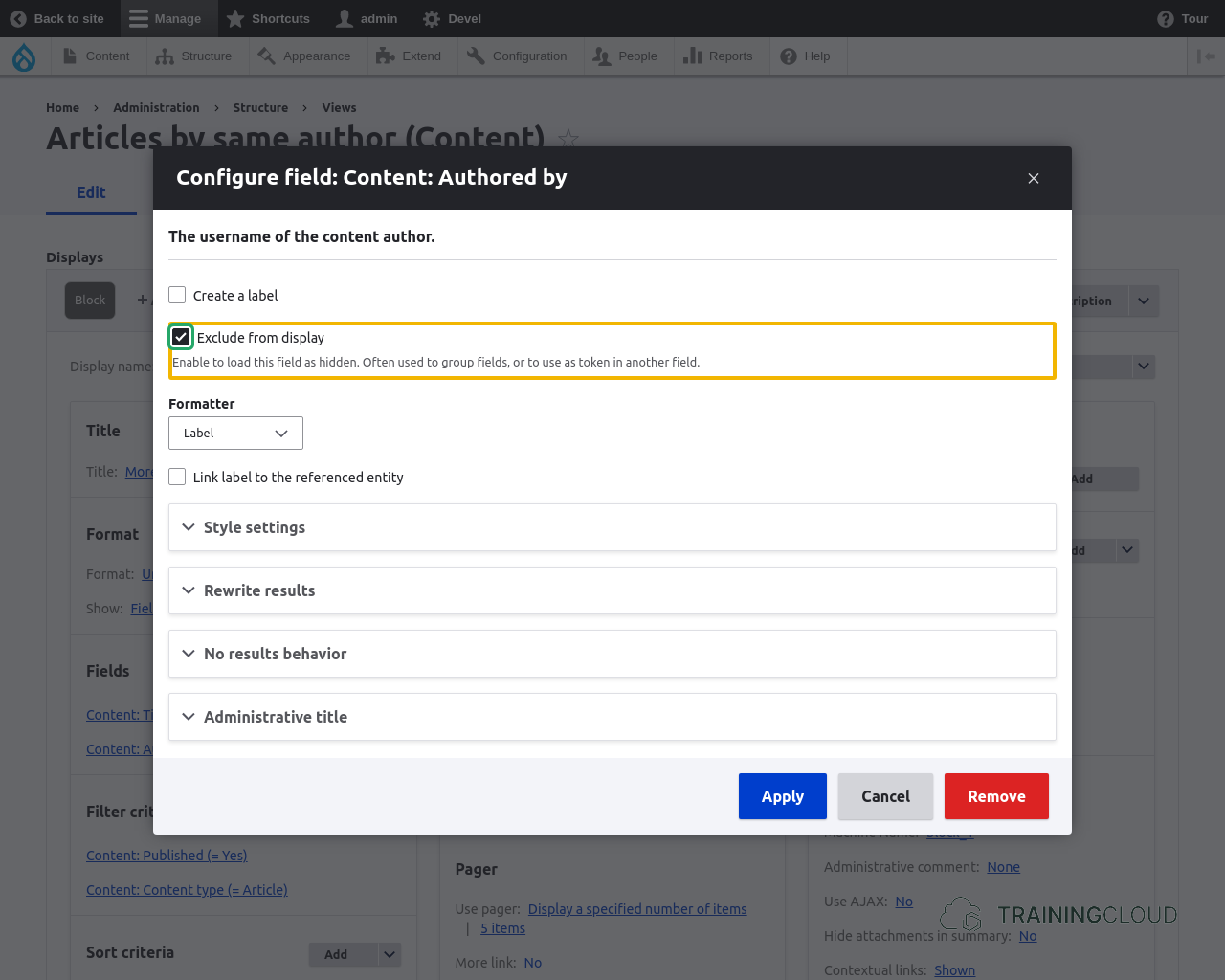
As this configuration option states:
Load this field as hidden. Often used to group fields, or to use as token in another field.Save your view and test the results.
If everything went well, your view should now look like this:
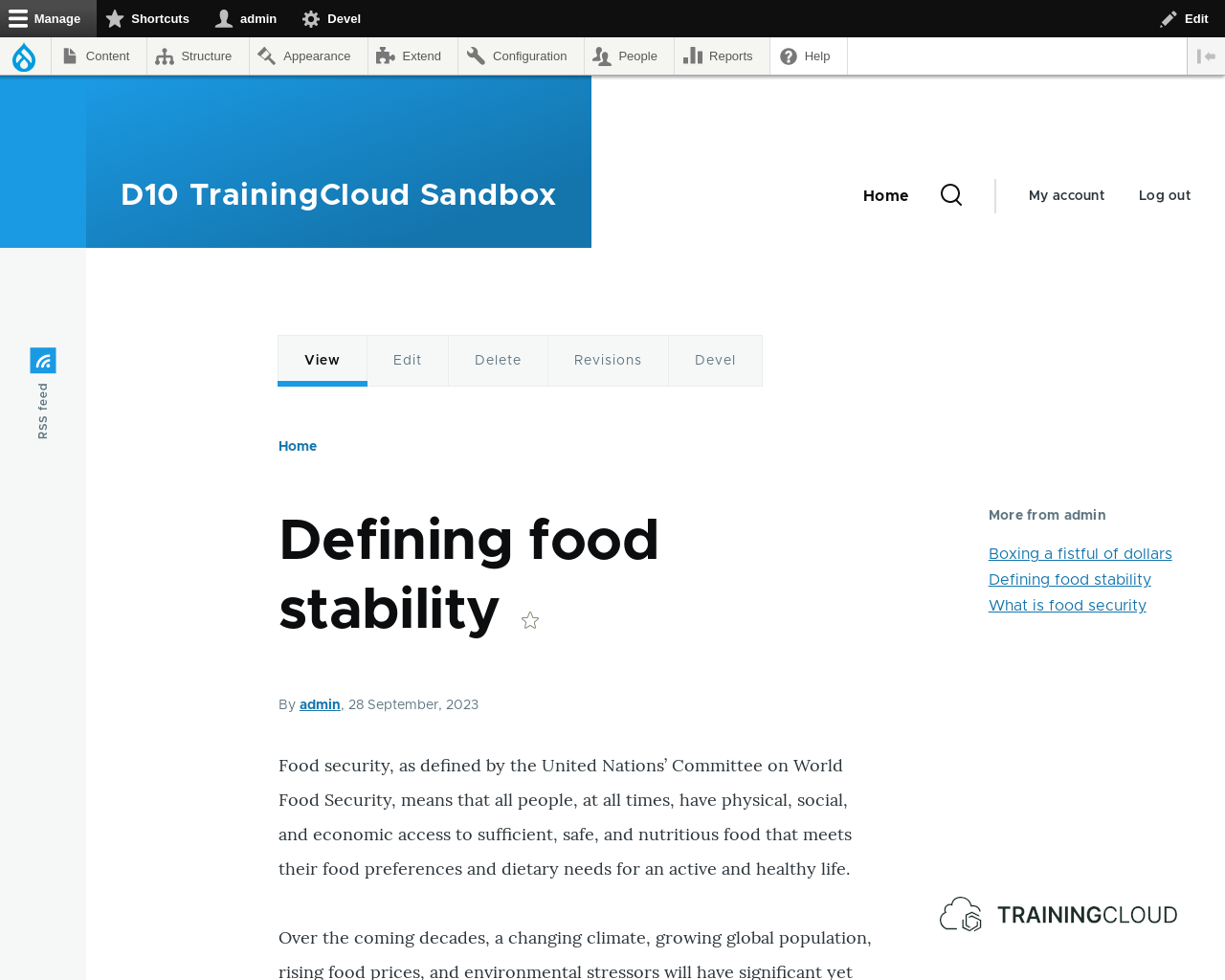
Mission accomplished!
Summary
- Use the 'User ID from route context' type of default value to filter on the author of the content whose page your block is being displayed on.
- Use any of your view's fields as replacement token in several places, such as the block's title.
- Exclude fields from display if you don't want to show them as part of the standard view output, but DO want to use them as replacement token elsewhere.