Products Filtered by Price
Assume you have a Content Type 'Product', added a decimal field called 'price' (field_price), and you have created 10 products.
You want to create a list of products, automatically filtered by price:
/products/by-price/→shows all products/products/by-price/50shows only products with price = 50/products/by-price/2500shows only products with price = 2500- ...
Step 1: prepare content type and content
Before you can start building this view, ensure the 'Product' content type exists, you've added a price field, and you've created 10 products or so.
Step 2: create a page view for Products
- Create a page view that lists products:
- Show all published content of the type Product
- Set its path to
/products/by-price/ - Under format set show to fields
- Add price field
At this point, your view should look similar to this:
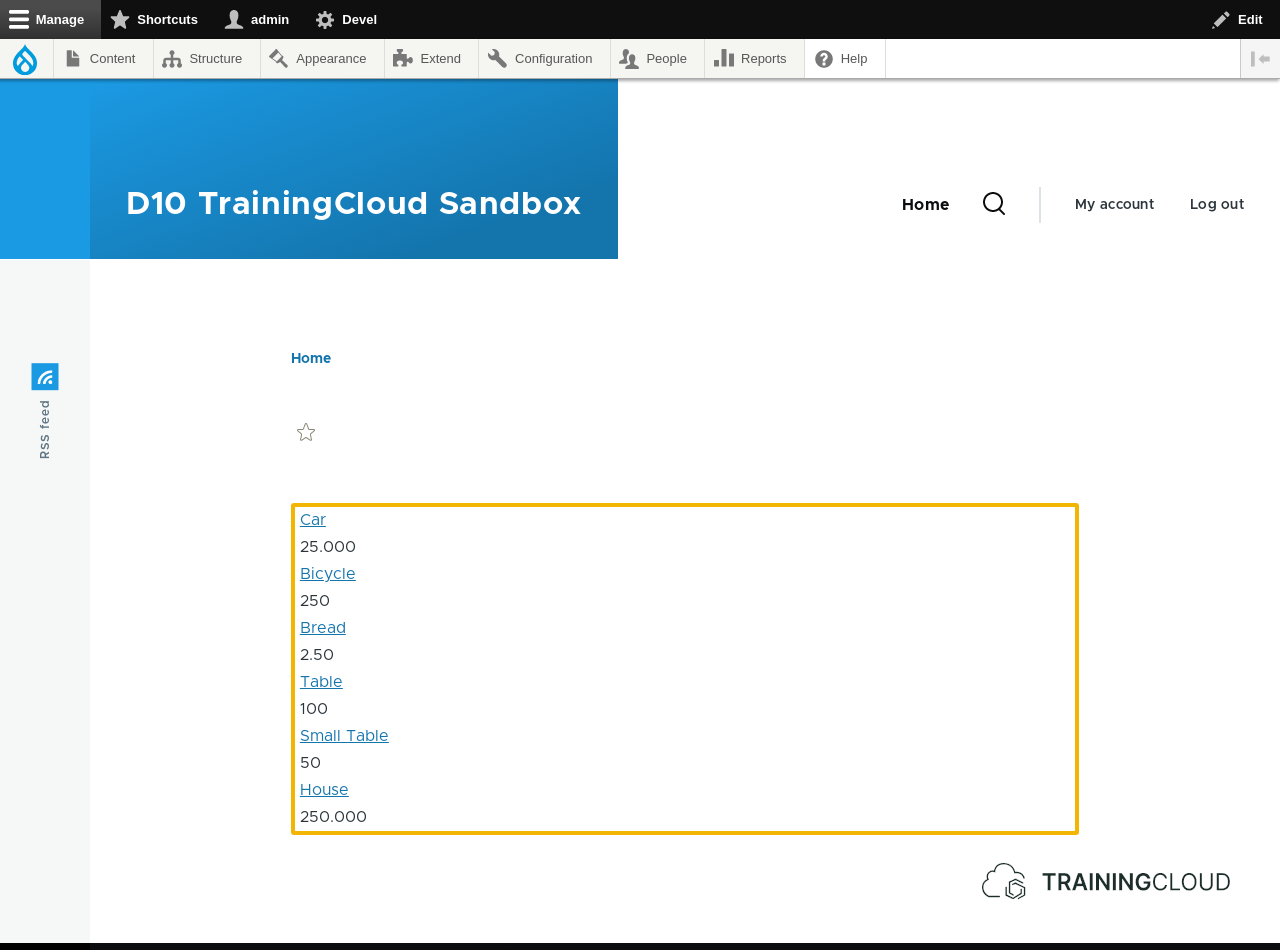
Step 3: add a contextual filter
Open the 'Advanced' section of your view definition and add a contextual filter:
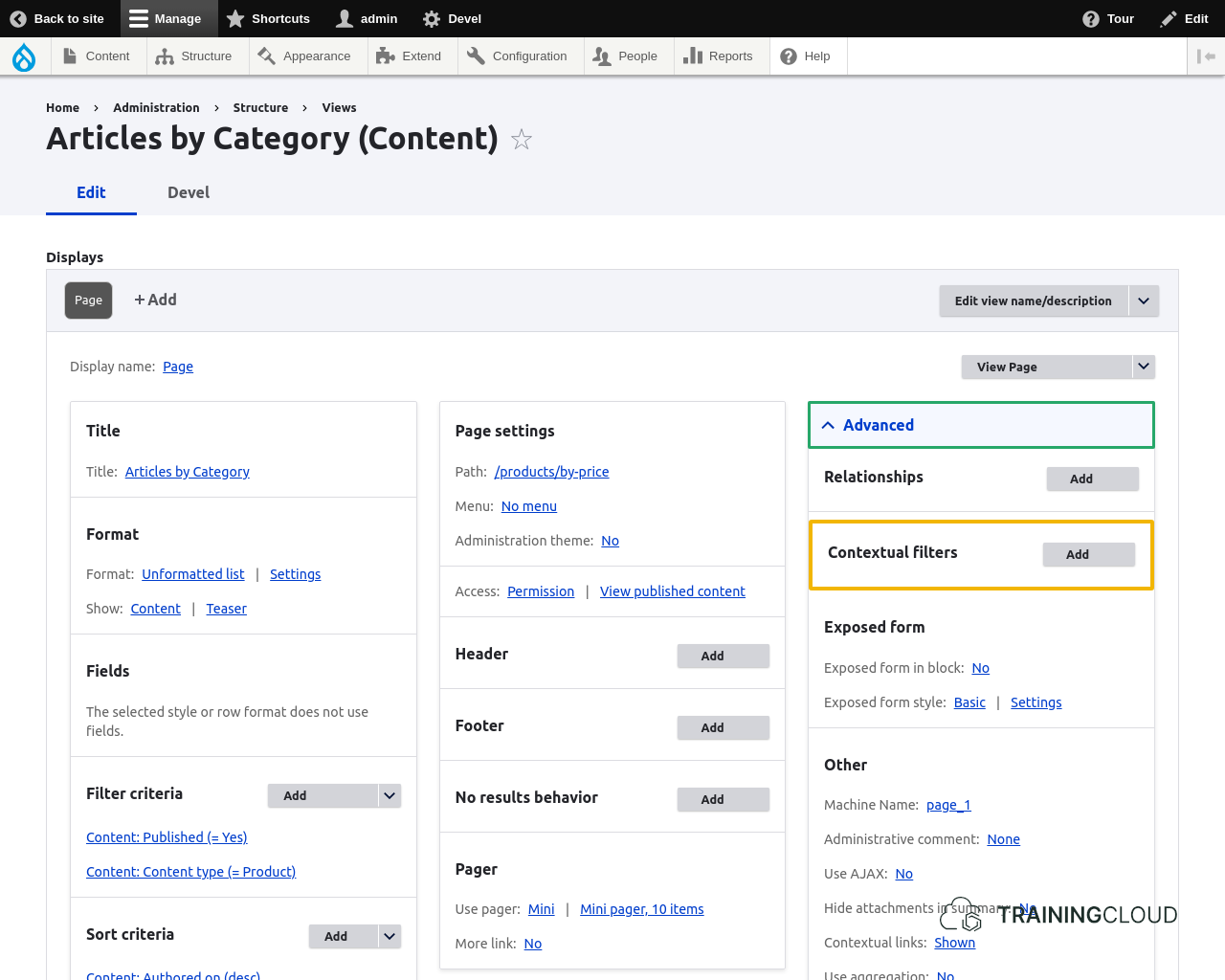
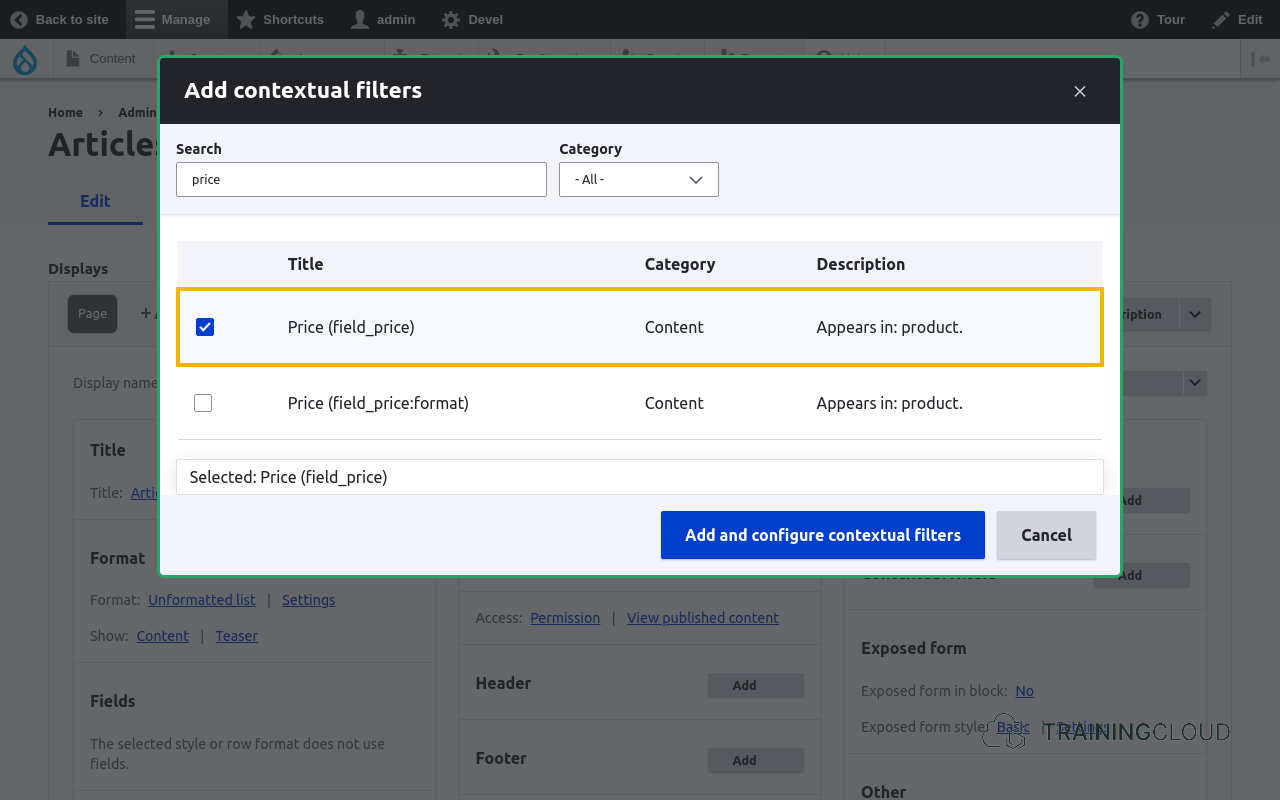
After clicking 'Add', you're presented with a list of potential filters to add, similar to when you add hardcoded or exposed filter criteria.
Find the 'Price' field, in the list of fields, select its checkbox, and click Add and configure contextual filters:
4. Configure the contextual filter
Once you've selected a field to use as contextual filter, you'll need to configure it. You can do so via Add and configure contextual filters. This brings up the contextual filter configuration dialog:
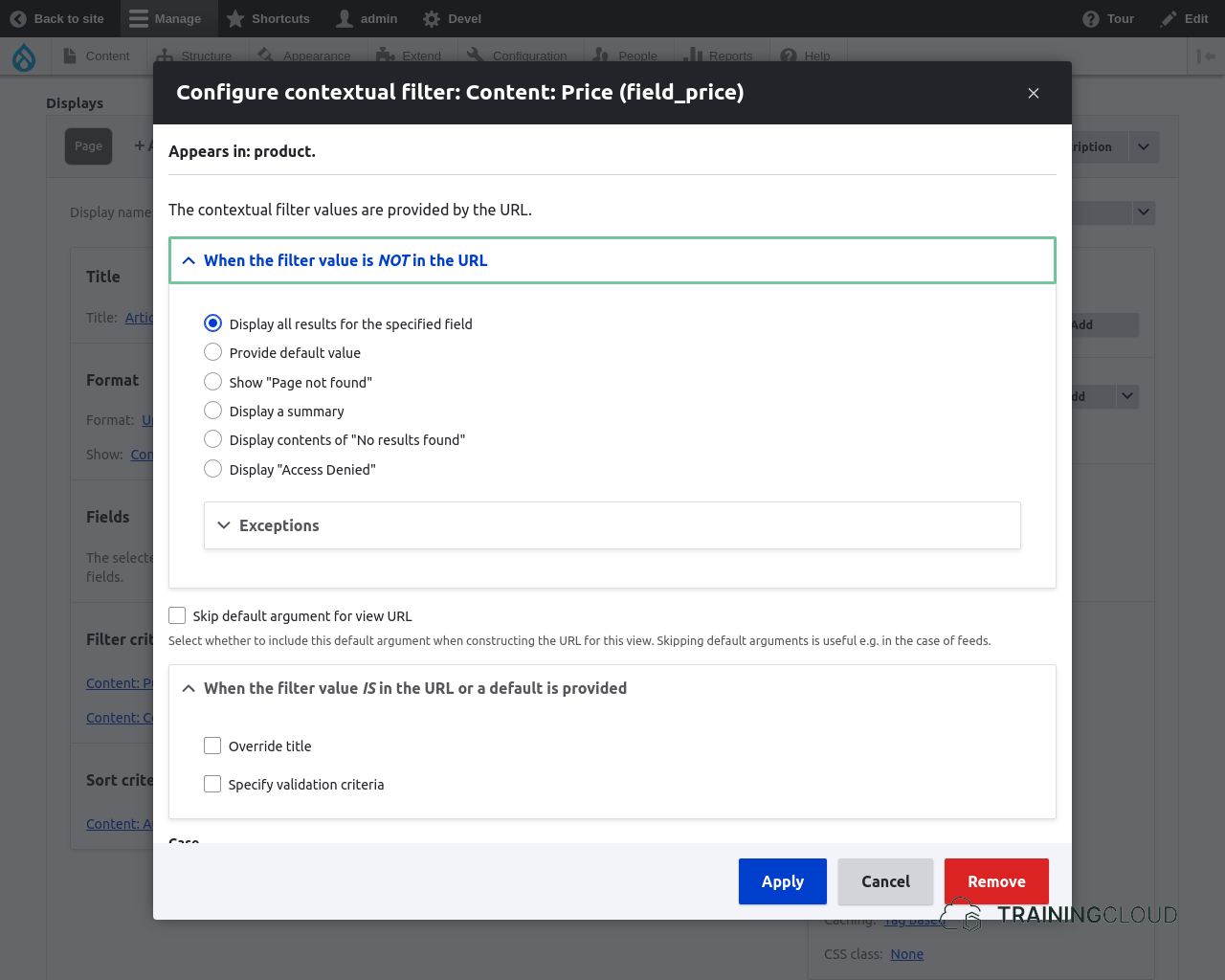
We'll look at some of these configuration options later.
For now, leave all configuration options untouched and click Apply.
Save the changes to the view.
5. Test the view
→ Browse to /products/by-price.
If everything went well, you should see the same view as before, still unfiltered because:
- The path
/products/by-pricedoesn't contain any filters - The default filter configuration options state "when the filter value is not in the URL, display all results":
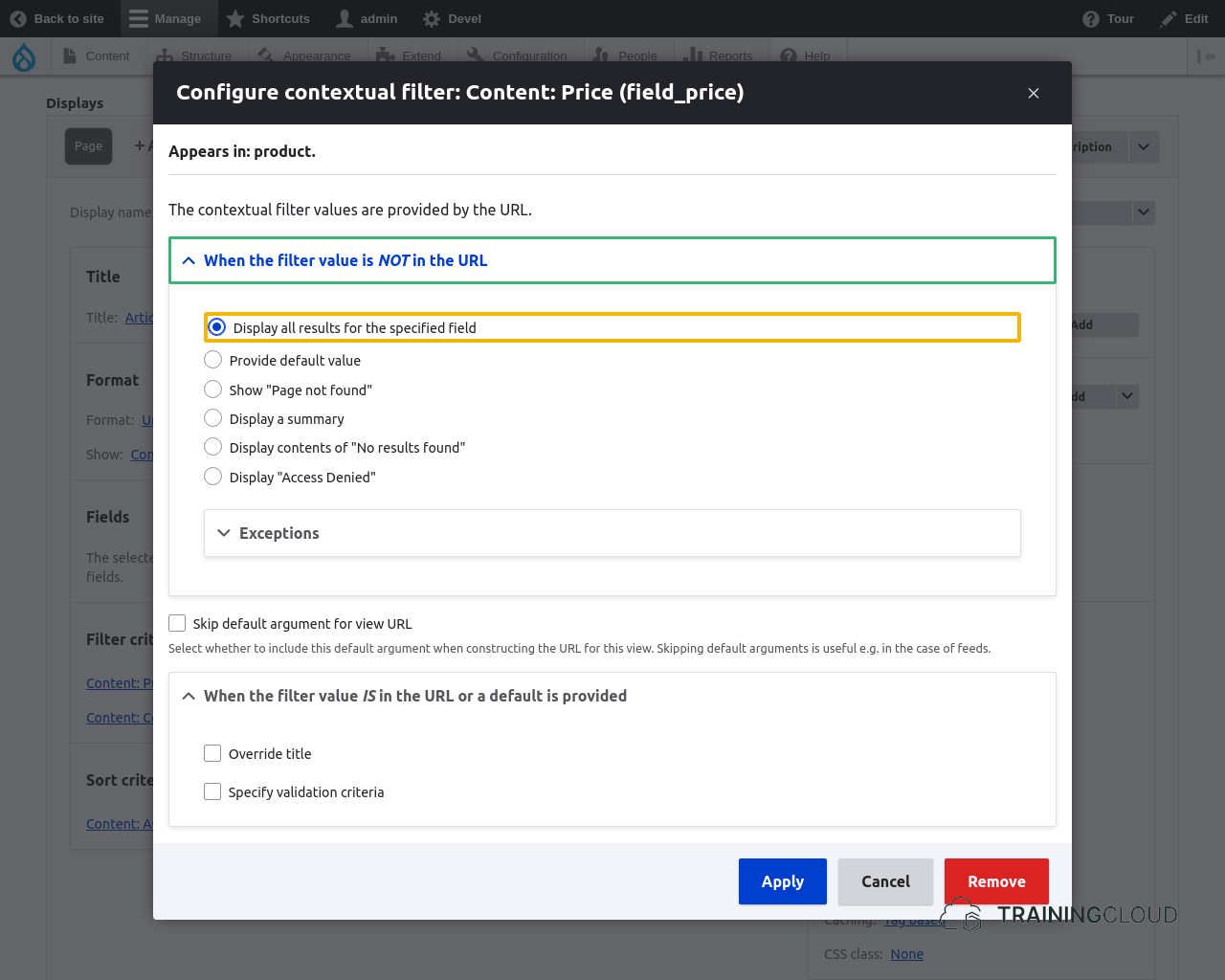
→ Browse to /products/by-price/50 (or another price you have used for one of your products).
This should show you the list of products where price = 50.
This is exactly what we wanted to accomplish: we've created a page view that is automatically filtered based on a value that's present in the view's URL.
Activity 1B
Modify the view you built in Activity 1:
- When no filter value is present in the URL, show the 'access denied' page instead of showing all items.
Activity 1C
Modify the view you built in Activity 1:
- Modify the view so it shows the message 'No products found.' when the view has no results. You can do this by adding a 'Text area' field to the 'No results behavior' configuration section in the middle column of your views settings.
- Modify the contextual filter behavior so it shows the new 'no results found' message you configured in the previous step.
Summary
- Contextual filters take their value from an available context.
- The most often used context is the path (URL) of the view itself.
- You can specify what should happen if no filter value is available, or if the view is empty.