Articles Filtered by term ID
Assume your Article Content Type has a taxonomy term field (which takes its values from vocabulary 'Article topics').
You could configure a contextual filter on article category so your list will automatically be filtered on whichever value is found in the URL context:
/articles/by-category→ would show all articles/articles/by-category/18(sports) → would show filtered results/articles/by-category/21(politics) → would show filtered results/articles/by-category/999→ would show no results because no term with ID 999 exists.
Step 1: prepare content type, taxonomy terms, and content
Before you can start building this view, ensure the following content type, vocabulary, terms, and content are set up on your local test site:
- A Vocabulary named 'Article topics' (or equivalent), with a few terms (like 'sports', 'politics', etc)
- A Content Type 'Article' with a taxonomy term reference field configured to use terms from the 'Article topics' vocabulary.
- At least 5 published articles (nodes of the type Article), each categorised with at least one taxonomy term from the 'Article topics' vocabulary
Step 2: create a page view for articles
- Create a page view that lists articles:
- Show published content of the type 'Article'
- Set its path to
/articles/by-category/
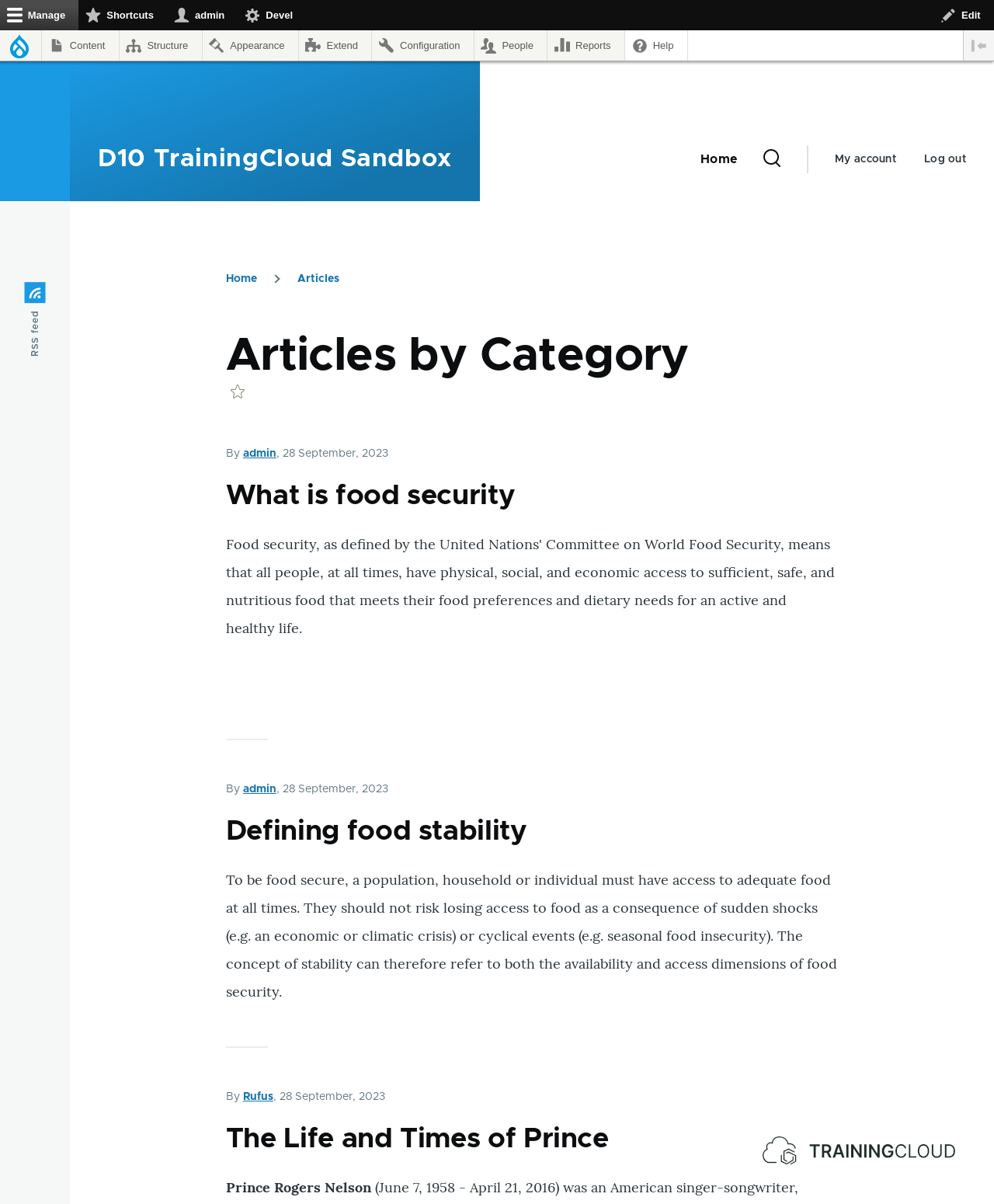
At this point, your view should look similar to this:
Step 3: add a contextual filter
Open the 'Advanced' section of your view definition and add a contextual filter on the Article topics' field and click Add and configure contextual filters:
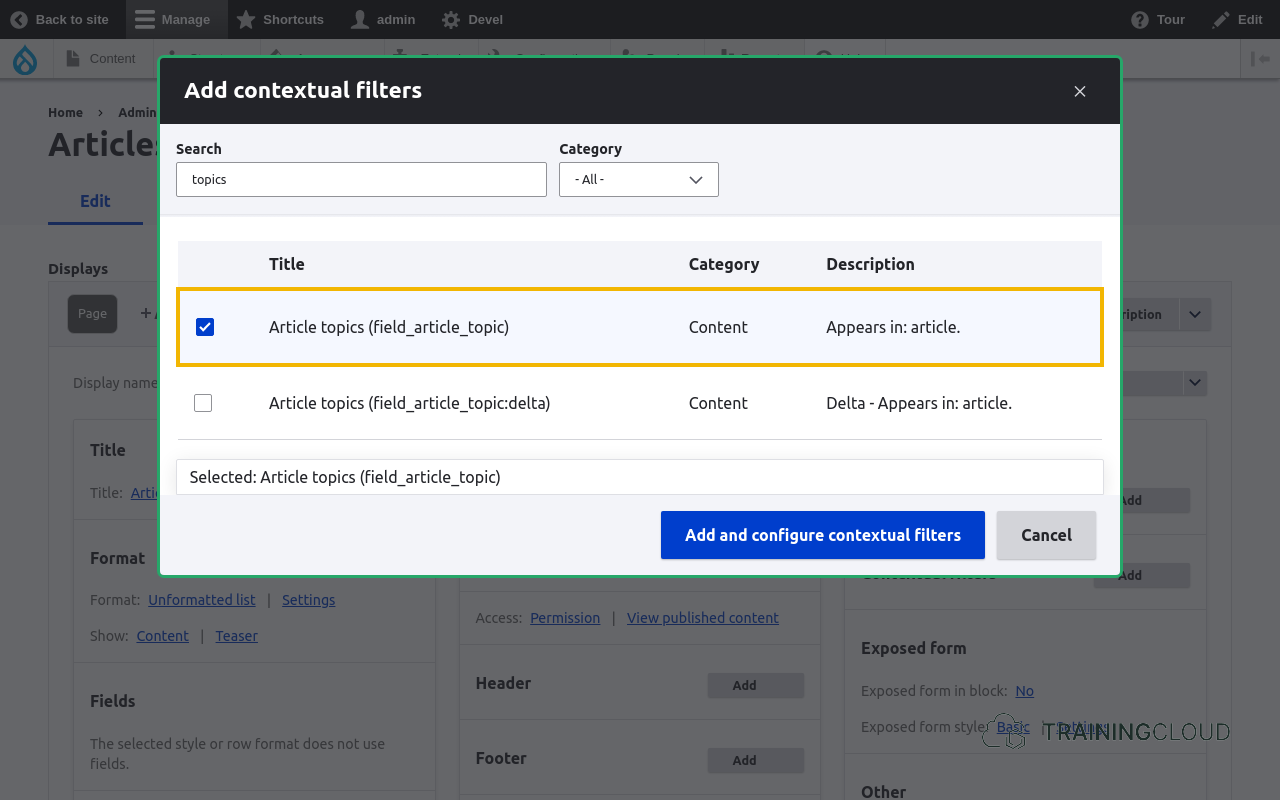
A note on :delta fields
- Fields that can contain multiple values, such as term reference fields, provide two potential filter fields:
field_{NAME}, which contains the value of the fieldfield_{NAME}:delta, which contains the order of the field value (the first value will have delta "0", the second value will have delta "1", and so on.
- "Delta" fields are rarely used, but can be handy if you only want to show, for instance, the 2nd image in a multivalue image field, or only the 1st and last value of a multivalue field, etc.
Step 4. Configure the contextual filter
You can now configure your contextual filter. Leave all the default settings as they are, for now:
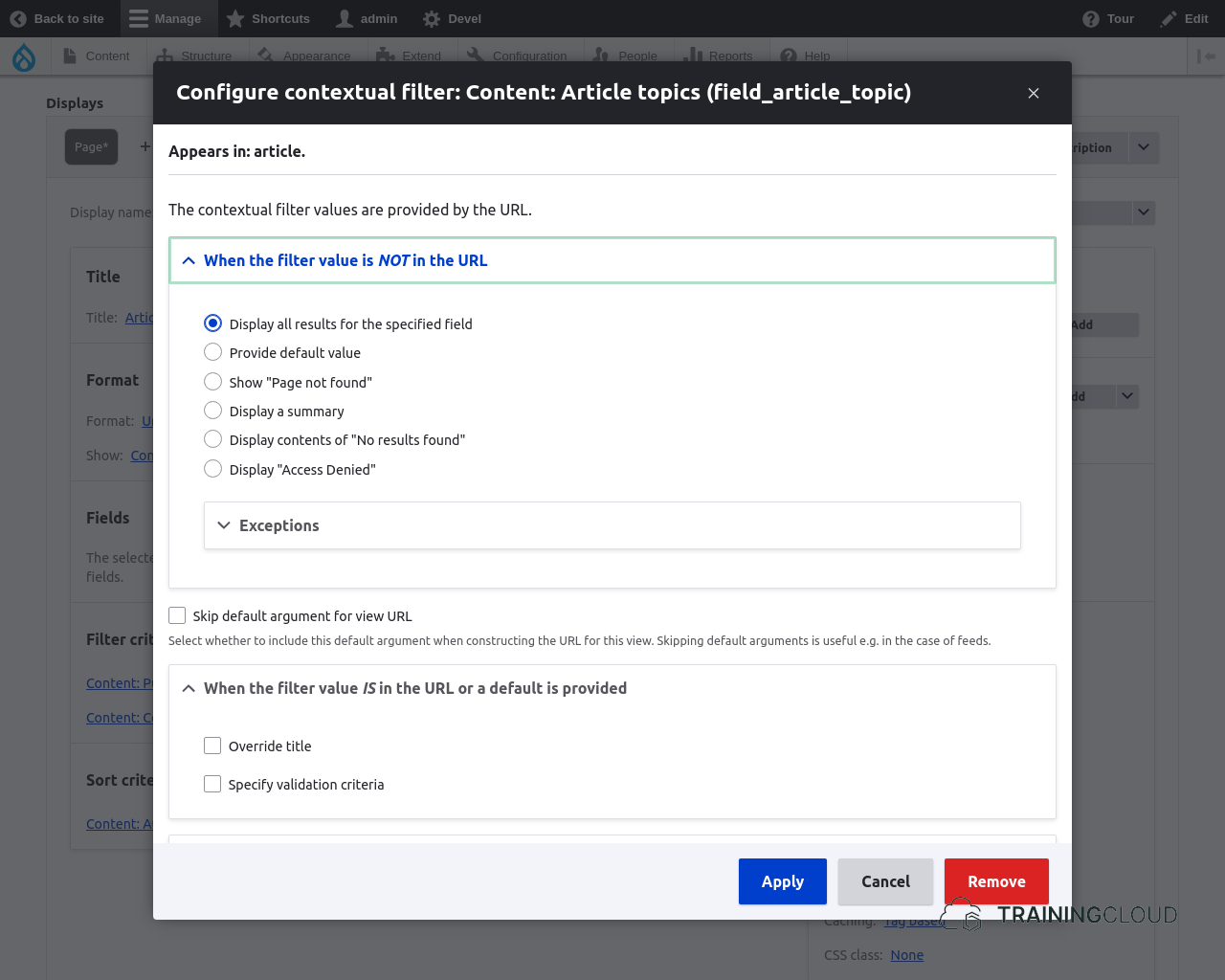
Click Apply and save the view.
Step 5. Test the view
→ Browse to /articles/by-category.
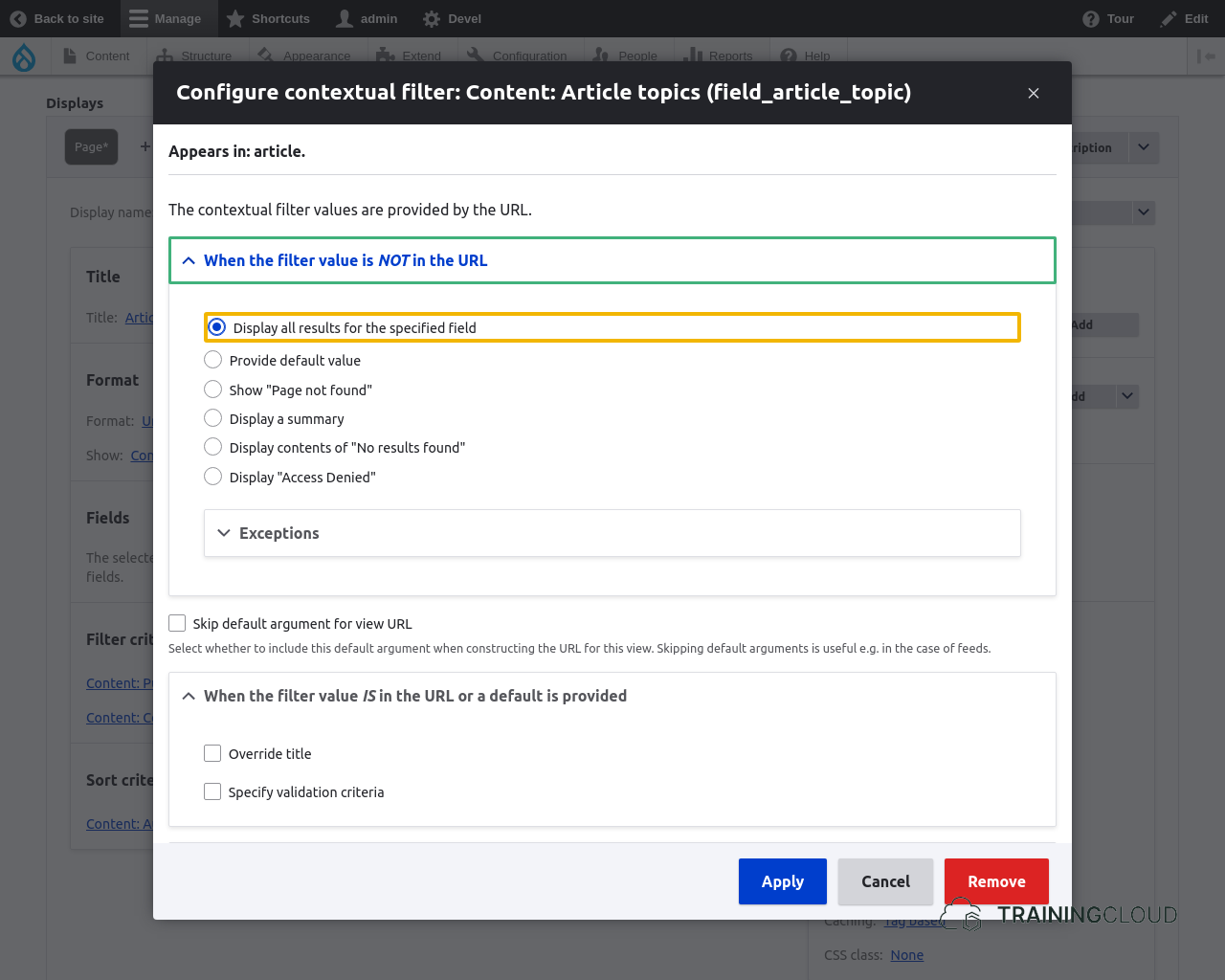
If everything went ok, you should see the same view as before, still unfiltered because:
- The path
/articles/by-categorydoesn't contain any filters - The default filter configuration options state "when the filter value is not in the URL, display all results":
→ Browse to /articles/by-category/18 (or the id of another term you have used to categorise at least one of your articles.
This should show you the list of articles, filtered by the category that corresponds to term id 18.
How to find a taxonomy term's ID
To test this view, and to make links to this filtered view, you need to know where to find the ID of each taxonomy term.
Sadly, Drupal doesn't make this very easy.
First, go to the list of terms you're interested in (Manage > Structure > Taxonomy > Article topics).
You now have two ways to determine a term's id:
Option 1 (if your term does NOT have path alias)
- Click on a term name
- Look at the path of that term page: /taxonomy/term/1 in your browser's address bar
→ the term's ID is: 1
Option 2 (if your term has a path alias)
- Click on a term name
- On the page that opens, click on the 'edit' local task tab.
- Look at the path of that term edit page: /taxonomy/term/33/edit in your browser's address bar
→ the term's ID is: 33
Improvements
This is exactly what we wanted to accomplish, but there is room for improvement, such as making it work with term names rather than term ids, so these kinds of paths would work:
/articles/by-category/sports/articles/by-category/politics- ...
These paths are more user-friendly, and are important for Search Engine Optimization (SEO).