Articles by term NAME
In the previous unit you've learned how to add a contextual filter on a taxonomy term field value (the term's ID).
While this worked, it would be better to build a view that automatically filters by term name (sports) rather than term value (18).
In this unit you'll make a copy of your filtered articles view and modify it so it filters by term name.
To do this you'll need to use a relationship as well as a contextual filter.
Reference fields
You previously defined your contextual filter on the field field_article_topics, which is a taxonomy term reference field.
All reference fields store the ID of the item (entity) they refer to, rather than the value itself. This is how Drupal handles referential fields.
- A term reference field stores taxonomy term IDs
- A node reference field stores node IDs
- A user reference field stores user IDs
- ...
If your view has filter on a field that stores a term ID ('18'), trying to provide a term name ('sports') as a filter value in your URL will never show any results.
The solution is to give the view the following instructions:
- I want to load /articles/by-topic/sports
- The URL contains a filter on field_article_topics
- The value is a term VALUE, not an ID. Don't try to filter on that value.
- Instead, Ttake the term value ('sports'), look up the corresponding ID (18), and then filter on that ID.
In other words, we need Drupal to first transform the filter value, and then use that transformed value as the actual value to filter on.
Let's do exactly that.
Duplicate your filtered articles view
In Manage → structure →views duplicate your 'Articles by Category' view by clicking on the arrow of the view's dropbutton and selecting "duplicate".
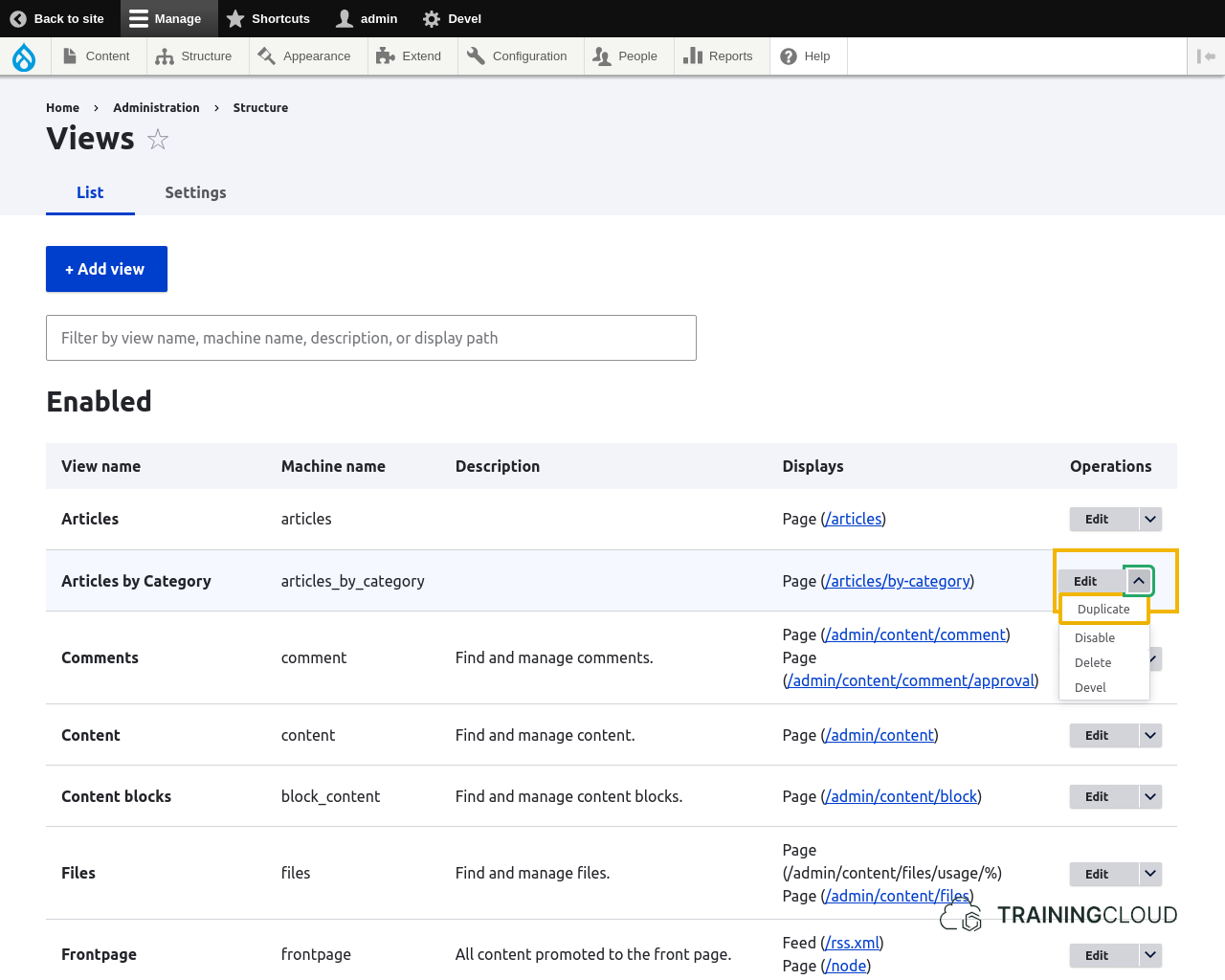
- Give your view a new name.
- Change your new view's 'path' settings to
/articles/by-category-name/to avoid having two views with the same path. - Under Advanced → Contextual filters, remove all filters (if any)
- Under advanced → Relationships, remove all relationships (if any)
- Save your view.
Now the basic view is set up, let's look at the contextual filter.
Add a relationship and a contextual filter
In the previous version of this activity you added a filter on Content: Article topics (field_article_topics). However, since that field only stores term IDs, we could only filter that view using term IDs, using URLs like '/articles/by-category/18'.
In this version you want to be able to filter on the topic terms' name: '/articles/by-category-name/sports'.
This is where it gets interesting, if possibly a bit confusing at first.
Before you can filter on a term name, you have to add a relationship to the topic terms. That way you'll have the full node data AND the full term data available in your view.
Add a relationship
→ add a relationship. Search 'for term', and select "Taxonomy term referenced from field_article_topics" as the relationship to add. Once this is done we are able to add a contextual filter on 'Term name'.
Add a contextual filter
→ add a contextual filter. Search for 'name'. Select "Name" (category: "taxonomy term")
A change in query logic
In essence, what you're doing is change the database query from:
Show all articles where field_article_topics contains {TERM ID}
To:
Show all articles and related taxonomy term objects where field_article_topics contains {the TERM ID that corresponds with the TERM NAME filter value}Test the view
If everything went well, you should be able to browse to your view and add an 'Article topics' term such as /sports to the end, and see if you do indeed see a list of articles filtered by the given term name.
Troubleshooting
When you're first learning about relationships and contextual filters, it's a good idea to try several times, and remove the view or its relationships and contextual filters often.
Leaving incorrect bits of configuration hanging around cam be confusing, and can make it hard to spot errors. While you're learning and experimenting It's often better to just throw away your view and start again.
Summary
Relationships can make contextual filters more powerful:
- Without defining a relationship, this view was only aware of each article's term ID, so we were not able to filter on term NAME.
- By adding the relationship we were able to enrich each article's data by also pulling in all taxonomy term related data beyond just the term ID. This then allowed us to filter on the newly available term NAME.