The available contextual information depends on the type of view display you're using.
If you are building a page display, your page view will have a path (URL), so the URL context is available. But if you're building a view with a block display, that block itself does not have a path, so a block view cannot automatically grab values from the URL context.
What it can do, however, is grab values related to:
- The content (node) that is being shown
- The user who is currently logged in and performing the action
Note:
If a node (/node/123) has a path alias (/articles/my-article), its node id is still available as contextual information regardless of whether you visit that page via /node/123 or via /articles/my-article.
Configuring contextual filters can be confusing at first.
Let's look at a few examples to understand different use cases.
Activity 3: building a 'My articles' block
Build a views block with the following requirements:
- Shows links to the last 5 articles written by the currently logged-in user. The block can be placed on any page.
- When anonymous visitors visit any page, this block is empty because anonymous visitors don't have permission to create articles.
- When I visit any page, the block needs to show my last 5 items.
- When Bob visits any page, the block needs to show their last 5 items
You'll need a contextual filter, and you'll need to configure it in a way we haven't discussed before.
Step 1: build the basic view
- Create a view with a block display, that shows content of the type Article.
- Make it show article titles that link to the articles.
- Make it to show a maximum of 5 articles.
Step 2: add a filter on User ID
The requirements state that the view must be filtered on the User ID of whoever is accessing the page that contains the view. In other words you need a dynamic, contextual filter.
→ add a contextual filter on the User ID ('Content: authored by').
At the top of the configuration screen for the 'Content: authored by' filter there's an import but easily overlooked message:
This display does not have a source for contextual filters, so no contextual filter value will be available unless you select 'Provide default'.This means: some contexts may be available, but the URL context is not one of them because you're building a block and blocks don't have URLs.
Filter configuration: provide default value
Whenever there's no filter value available in the URL context, you can provide an alternative value from a different context by selecting Provide a default value.
To complete this task, you'll need to set the type to "User ID from logged in user":
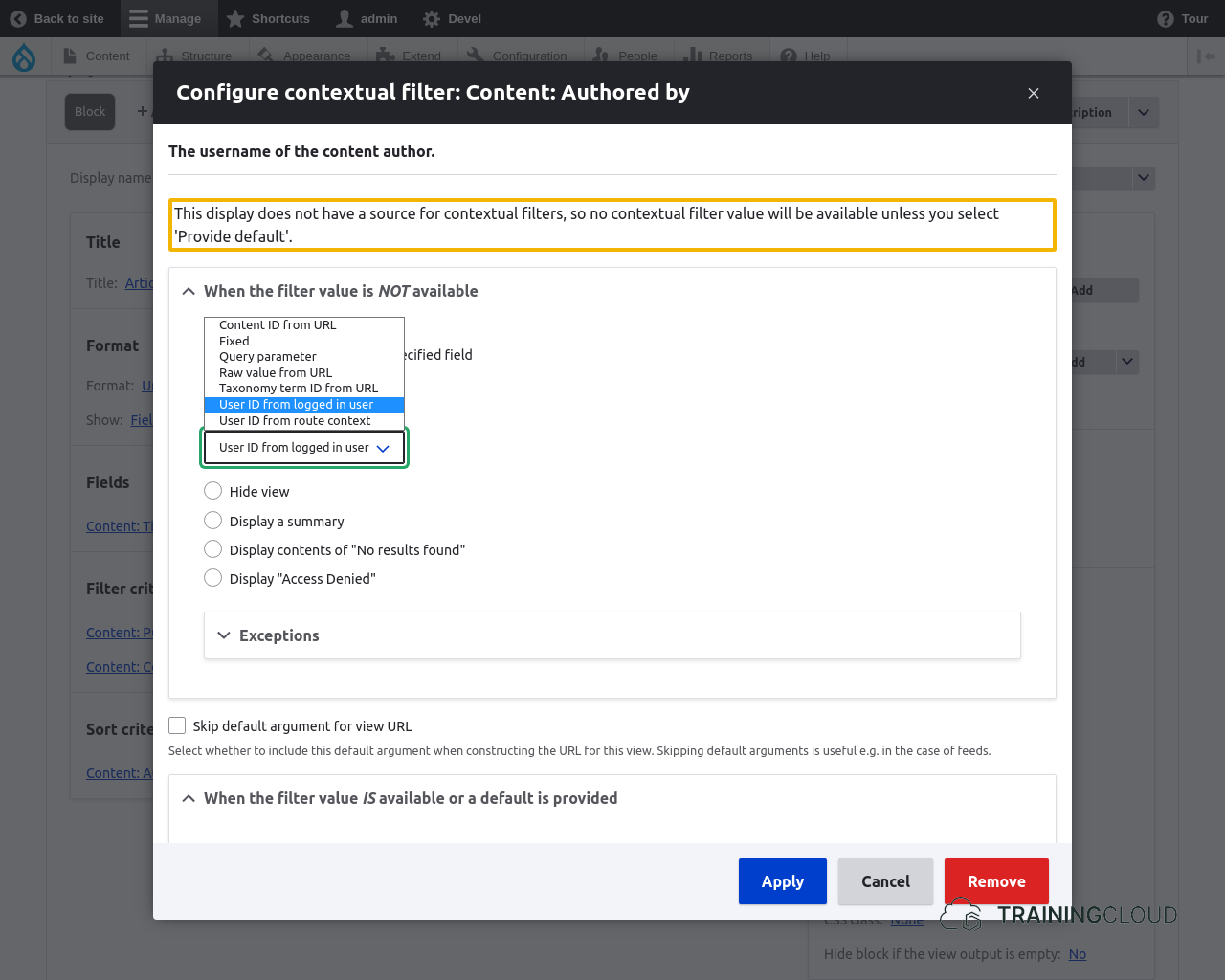
If you've done all of the above, you've instructed your views block to do the following:
- Show articles
- Add a dynamic filter on article author
- As filter value, take the User ID of the logged in user
Step 3: place the block in a theme region
Your views block should now be complete.
→ Place your block in the 'Sidebar' region, and browse to any page to see the block in action.
Step 4: test your view
If all went well, it should show links to content that you created.
Verify the block is working correctly by:
- logging out and browsing any page: the block should be empty
- logging in as a different user and browsing to any page: the block should only show content that that user created.
Default value types for contextual filter values
When a contextual filter value is NOT available, and you select "Provide a default value", you can select one of several types of 'default values' (we prefer to call them 'alternative values')
'Content ID from URL' refers to the ID of the node on whose page this views block is being placed.
If this views block is being placed on non-content page, the value will be empty.
Example:
- Your URL is
/articles/hello-world(node id = 12) → your filter value is '12' - Your URL is
/node/44→ your filter value is '44'
You can provide fixed, hardcoded value.
If the current URL contains query parameters, you can use the value of one of those parameters as the filter value.
Example:
- Your URL is /articles?published=1
- If you set your value to the query parameter 'published', its value will be '1'
- You can now create one view with two different outputs:
- /articles?status=0 → shows unpublished articles
- /articles?status=1 → shows published articles
You can indicate any path component of the current URL as your filter value.
Example:
- Your URL is
/products/construction/safety/boots-and-shoes - Path component numbering starts from 1, so setting the 'path component' to '3' would set the filter value to 'safety'
Taxonomy term ID from URL' refers to the ID of the term on whose page this views block is being placed.
Example:
- Your URL is
/taxonomy/term/123→ our filter value will be set to '123'
If this views block is being placed on non-content page, the value will be empty.
Sets the filter value to the User ID of the currently logged in user.
If the current user is not logged in, the value is '0'.
Sets the filter value to the User ID of the owner / author / primary user associated with the content on whose page this views block is being shown.
Example:
- Your block is shown on
/articles/hello-world(id = 77) - Node 77 has user 3 set as author / owner
- → Your filter value will be '3'
Summary
- Views block displays don't have access to the contextual filter URL context
- When there's no value from the URL context available, you can provide different types of 'default' value:
- Content ID from URL
- Fixed
- Query parameter
- Raw value from URL
- Taxonomy term ID from URL
- User ID from logged in user
- User ID from route context