Introduction
Drupal has several different internal caches, meant for different purposes. Developers can choose one of these caches, or create their own additional cache.
Each type of cache can have a different cache bin or cache back-end where the data is actually stored.
This is extremely useful: one type of cache could save its data in an optimized way in the main database, whereas another type may store its data in an in-memory database like Redis, or in a set of files on the server, depending on what's most optimal.
Let's have a look at the main Drupal caches.
Drupal caches
CSS and JavaScript Cache
Contains optimized sets of CSS and JavaScript files, if you haven enabled bandwidth optimization at Administration > Configuration > Development > Performance.
Needs to be cleared after you have made any CSS or JavaScript changes.
Plugins Cache
Keeps track of all the plugins various modules provide. If you create a custom module that provides a custom block, for example, you are introducing an additional block plugin, and Drupal keeps track of it in the Plugins Cache.
Needs to be cleared after you create a new plugin, or change its PHP class name or filename.
Render Cache
The process of turning request for data into a response that returns data in the correct format, is called rendering.
When a page is requested, Drupal's rendering pipeline retrieves various sets of data (regions, blocks, node information, user information, ...), taking into account access permissions and other factors, and assembles them into data structures called rendering arrays.
These rendering arrays are then passed on to a rendering engine that turns them into HTML, XML, JSON, RSS Feeds, or other formats.
The Render Cache stores render arrays (and other associated data). Entries in this cache need to be invalidated when their underlying objects (such as nodes, blocks, and users) are updated. Drupal should take care of this automatically.
Routing and links Cache
This cache stores routes, declared by modules, (such as /orders/{order_id}/invoice), and links for menu items and local tasks (such as view, edit, delete, and revisions on node pages).
Needs to be cleared after you add new routes and links, or when you update existing ones.
Static Cache
This is not a real cache like the previous cache mechanisms, but it works in a similar way. If you're not a developer working with static variables, you can safely ignore this cache.
Static variables are variables that keep their value after the function that declares them exits. The variables are still local in scope, but retain their value the next time the function is called.
Static variables can dramatically increase performance in situations where the same function is called many times during a request-response cycle.
Clearing this cache resets all static variables in use.
Twig Cache
Twig is the template engine that powers Drupal as of Drupal 8. Drupal uses Twig template to turn data structures such as render arrays (see Render Cache) into HTML output.
When a twig template for, let's say, a block, gets rendered, the result is a snippet of HTML. That snippet is combined with lots of other snippets that together make a fully rendered web page.
Some of these snippets are potentially reusable: the site header and footer, certain blocks that appear on different pages and always show the same content, and so on.
These snippets, also called compiled templates, are stored in the Twig Cache.
This cache needs to be cleared when you introduce new templates or modify existing ones. It should also be cleared when the underlying data (nodes, blocks, ...) has become stale, but Drupal takes care of this automatically.
Views Cache
The Views system lets site builders create lists of content, users and other things, and present those as pages and/or blocks. Technically speaking, Views is a visual query builder that lets you build database queries without writing SQL.
The Views Cache stores data about database tables and their structure, as well as raw query results.
Note that the Views system also makes heavy use of most of other caches such as the Render Cache, Twig Cache, and Theme Registry Cache.
This cache needs to be cleared if the database structure has changed (new database tables, new field added to a table, etc) or when the underlying data has become stale.
Theme Registry Cache
Keeps track of which templates are used for rendering various components.
Needs to be cleared after you introduce new templates, otherwise Drupal won't know about them.
Managing caches
You can manage basic cache settings for Drupal's built-in caching at Manage > Configuration > Development > Performance:
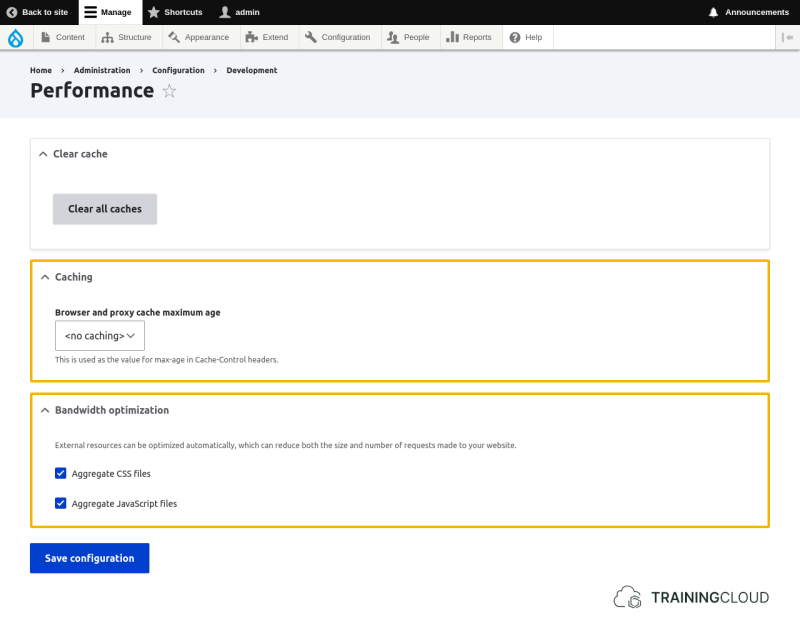
Browser and proxy cache maximum age
This setting informs external caching mechanisms (proxies, accelerators, and browser caches) how long they should store cached content.
In other words, this setting does not impact Drupal's internal cache lifetime, but specifies after how much time external caches should consider their cached content as outdated (stale).
Available options range from 0 minutes to 12 hours.
On production sites it's generally a good idea to set this to a few minutes at least, unless your site's content changes so rapidly that showing minutes-old data is problematic to your audience.
Bandwidth optimization
Many core and contributed modules add one or more CSS and JavaScript files to the list of assets that need to be loaded. The more modules you install and the fancier your theme is, the longer the asset list grows.
It's not uncommon for a typical Drupal page to require dozens of CSS and JavaScript files.
Without aggregating (combining) these files into a small set of big asset files, browsers would need to request and download all these single files individually, which takes a lot of unnecessary time and resources.
Enabling the Aggregate CSS files and Aggregate JavaScript files options speeds up page loads by reducing the number of CSS / JavaScript files that need to be downloaded.
It's a good idea to disable aggregation while you're developing, but you should always enable it on production sites, unless you have very specific reasons not to do so.
Clearing caches
Because Drupal contains so many separate systems that all interact with continuously, sometimes you still see old (stale) web pages or parts of web pages when you know the underlying data has changed, or the template or style was updated.
In those cases it's necessary to clear you cache(s).
Clearing caches is a safe, non-destructive operation: you are not removing actual, original data from the database, but rather a temporary copy.
Developers often choose to simply clear all the caches at the same time for convenience, and only clear a specific cache if clearing all caches takes too long, which can happen on large sites.
Another reason for only clearing a specific cache is if you don't want your live site to suffer a performance hit during the time it needs to rebuild all its caches, and you only want your updated CSS / JavaScript, for example, to be used.
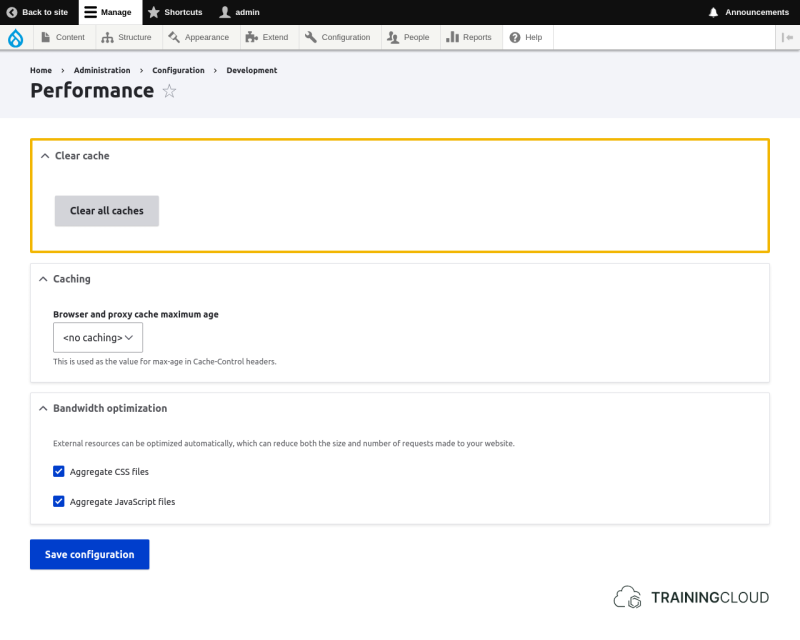
Via the Performance settings:
Via the admin menu, go to Structure > Development > Performance.
Click Clear all caches.
After the caches are cleared, a message will appear at the top of the page.
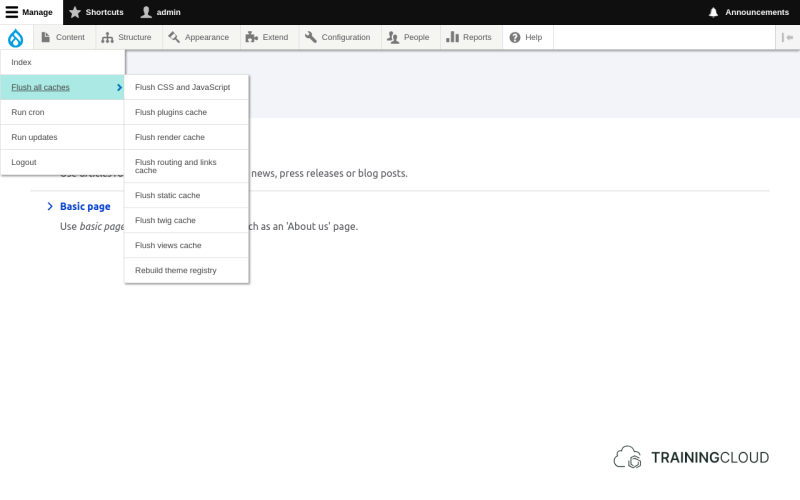
Via the QuickMenu:
The first item in your administrative toolbar is the QuickMenu, represented by the Drupal logo (or a different logo, if it has been customized). It provides quick access to a number of maintenance tasks, including clearing the cache.
The most appropriate option is usually Flush all caches, unless you know what you're doing and want to clear a specific cache.
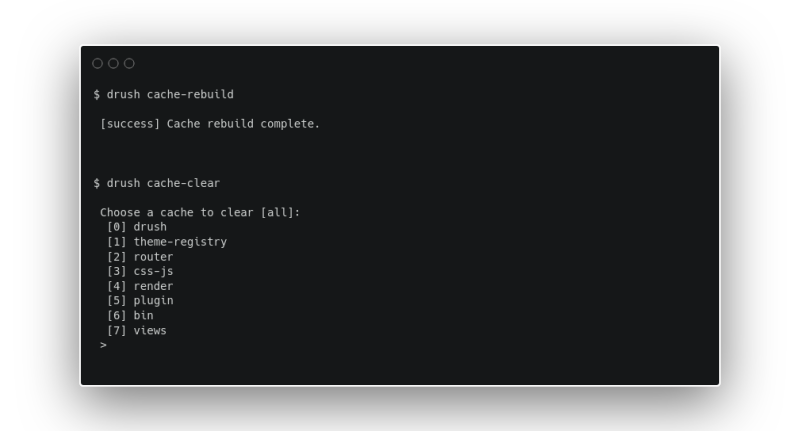
Via the Command Line:
If you have access to the command line, either locally or via the terminal window in your code editor, you can use the drush command line tool.
Clearing all caches can be dangerous
On live sites with heavy traffic, you need to be careful with clearing all caches.
The reason caches exist is to increase performance by temporarily keeping and serving a copy of something so it does not need to be recomputed or retrieved during every single page request.
If you clear your cache on a busy site, all these data structures and snippets of HTML have to be rebuilt at the exact same time as many people are requesting pages. This can lead to your server getting flooded by requests, exhausting its resources (memory, CPU, ...) and dying.
Warming caches
To prevent sites from being overwhelmed by requests after a cleared cache, you can use a technique called cache warming: automatically re-adding fresh cache entries after the stale entries are removed.
Modules such as https://www.drupal.org/project/warmer can help with this.
Core caching modules
Drupal core contains 3 caching-related modules: Internal Page Cache, Internal Dynamic Page Cache, and BigPipe. They are enabled by default and have very few configuration options.
You should leave them enabled unless you're setting up alternative caching strategies that conflict with how these modules work.
Internal Page Cache
This module caches pages for anonymous visitors. As a result, all anonymous visitors will see the same cached pages.
This behavior is what most sites want most of the time. If your site needs to serve personalized content to anonymous users, you will need to disable this module, or rely on JavaScript to fetch personalized content.
The Browser and proxy cache maximum age settings at Manage > Configuration > Development > Performance are provided by this module.
Internal Dynamic Page Cache
This module caches the common (non-personalized) parts of pages for authenticated users, based on so-called cache contexts.
There are no configuration settings for this module.
BigPipe
The BigPipe module uses the BigPipe technique, invented at Facebook, to reduce page load times of pages with personalized content by first sending the non-personalized content to the browser, and sending the other personalized bits afterwards.
There are no configuration settings for this module.
Summary
- Drupal has a number of internal caches that can be cleared separately, or all together.
- During development, caches need to be cleared often to ensure new functionality is working correctly.
- Caches can be cleared:
- via the admin menu
- via the Performance settings
- via the command line using drush
- On busy live sites, clearing caches may be dangerous and kill performance. Cache warming strategies can help reduce this risk by repopulating caches before visitors request the content.
- Core caching modules:
- Internal Page Cache (caches content for anonymous visitors)
- Internal Dynamic Page Cache (caches content for authenticated visitors)
- BigPipe (speeds up page loads by serving content in different steps)