Introduction
Drupal is built from the ground up to be extended or modified via third-party modules.
We refer to these modules as contributed modules: they are are not part of Drupal core, but just like core they are maintained by opensource developers and you can find them at https://www.drupal.org/project/project_module .
You can think of modules as apps: some provide a lot of features that you use every day, while others might only be used rarely. And some modules don't even have a web interface, or only exist to be a building block for other modules.
Drupal's open architecture lets module developers modify Drupal's internal mechanics through their own modules in a controlled and safe way, with less chance of creating conflicts, and without fear of losing your changes every time Drupal is updated.
Anatomy of a module
A Drupal module is a folder that contains source code files and configuration files, all following a certain naming convention for consistency and to help Drupal discover the various things the module wants to add or alter.
Let's start by looking at a small custom module that does one single thing: provide a block with the text "Hello world":
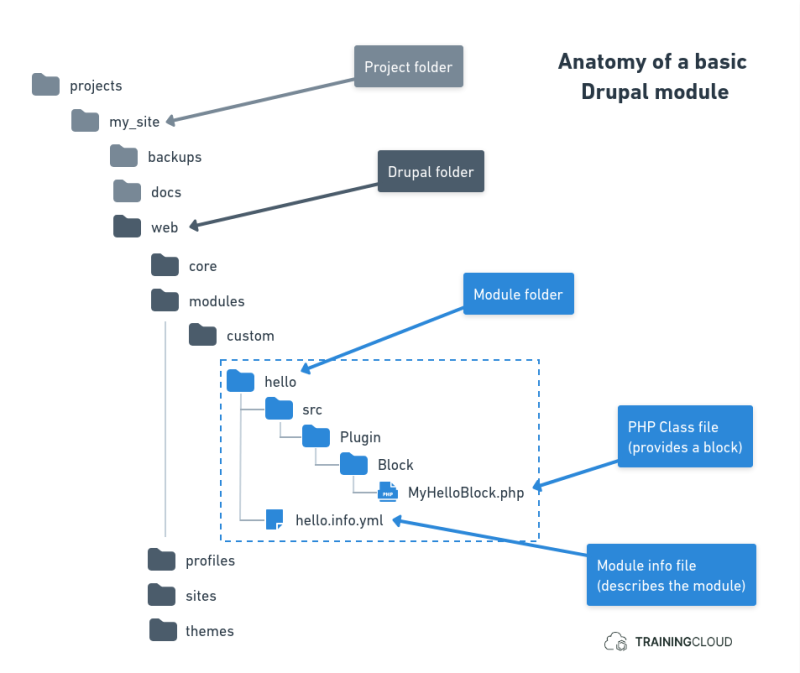
Where to place modules
→ Third-party modules should be placed in /modules/contrib/.
→ Custom modules should be placed in /modules/custom/.
This is a custom module, so it should be placed in /modules/custom/.
Modules can be located in other places as well:
- inside
/core/for modules that are part of Drupal core - inside
/profiles/for modules that are part of installation profiles - inside
/sites/if you are using a multisite setup
That said, 99% of the time you will place modules in the standard /modules/ folder.
Module files
This module contains only two files:
hello.info.yml: describes the module using the YAML formatMyHelloBlock.php: the source code that defines the block
The info file
hello.info.yml is the module's so-called "info file". It describes the module and makes it discoverable to Drupal. If this file is not present, has the wrong name, or does not contain the required information, Drupal will not detect it as a valid module, and you won't be able to activate (install) it.
In addition to the required name, description, type, and core_version_requirement, you can specify a module version, category, dependencies, and other metadata.
Info files use the YAML syntax.
This module's human-readable name is "Hello". Its unique identifier is "hello" (the part of the filename without the '.info.yml' extension is automatically used as the module's unique machine name), and it is suitable for any version of Drupal 9 and any version of Drupal 10.
File: /hello/hello.info.yml
name: "Hello"
description: "This module provides a Hello World block."
type: module
core_version_requirement: ^9 || ^10
Once a module contains an info file, Drupal will be able to discover it, and you will be able to install it. But if you don't add any other code files, your module won't actually do anything.
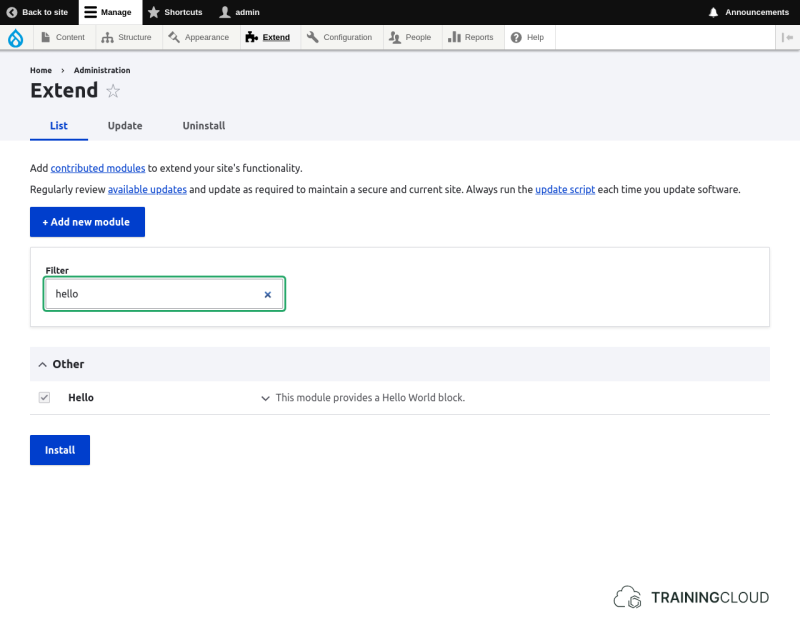
With only an info file, Drupal can discover the module, you can install and uninstall it, but the module itself doesn't do anything yet.
A block plugin file
The purpose of this example module is to provide a block that site builders can place on the site.
The way to create blocks programmatically in Drupal is to create a block plugin, and follow certain filename and location conventions to make sure Drupal can discover it and add it to its list of known blocks.
In other words, each block is a plugin that plugs into Drupal's Block system.
We won't go into the details - this is not a hands-on development course - but we do want to show how relatively little code you need to create a basic block in code.
File: /hello/src/Plugin/Block/MyHelloBlock.php
This example is extremely basic: the block prints a bit of HTML markup with the text "Hello World".
Instead, you could retrieve some data from the database and show that, or call an external webservice to get the value of Microsoft shares on the stock market and show that, or pull in your latest tweets, or anything else you are able to code.
But what if you wanted the module to provide two custom blocks instead of one? Would you need to create two separate modules?
Luckily: that is not the case. Modules can contain any number of block plugins, all placed in its /src/Plugin/Block/ folder.
Example:
The /core/modules/system module, an important part of Drupal core, provides six blocks in its /src/Plugin/Block/ folder, such as the "Powered by Drupal", "Breadcrumb", and "Menu" related blocks.
Activity (optional)
If you have access to a copy of Drupal 10 running on your own machine, the following activity will give you your first experience running your own module.
- Recreate the Hello module mentioned earlier:
- create a folder named hello and place it in the
/modules/custom/folder. - If
/modules/doesn't have a/custom/subfolder, create it. - create the required info file and its contents and place it in the hello folder
- create the required block plugin file and place it in
hello/src/Plugin/Block - go to manage > extend, find your module, tick its checkbox, and clock
install.
- create a folder named hello and place it in the
Ensure you are using the exact file names, file locations, and file content as described in this unit.
Summary
- Modules are folders with source code and configuration files.
- Modules must be placed in a specific location.
- Modules have an info file that makes them discoverable.
- Modules should also have one or more other files that actually provide some kind of functionality.