As of Drupal 11.4, the Manage display section of the Field UI shows a new Overview screen by default, which lists the available View modes.
This screen did not exist before D11.4.
This is not yet reflected in the content or screenshots of this guide.
Otherwise, the guide is up to date with D11.
In this unit
- Learn about View modes.
- Learn how to configure field display options per View mode.
- Learn how to show/hide fields.
- Learn how to customise the formatting options of each field.
Manage display
At Manage > Structure > Content Types > Article > Manage Display you can define which fields are show or hidden, and how the fields should be displayed:
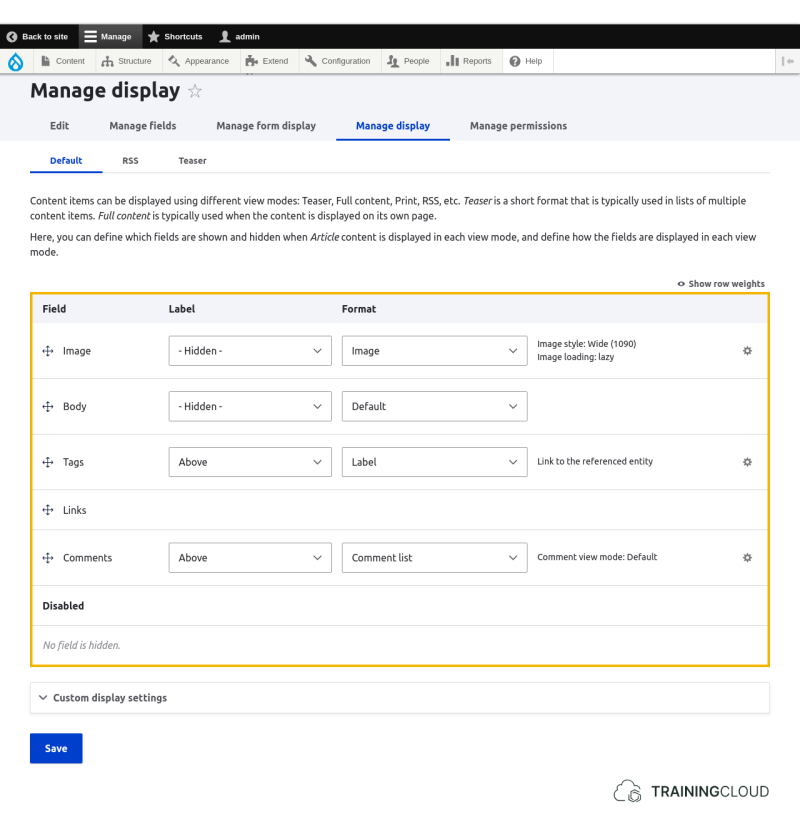
Things you can do
- You can drag and drop each field to change the order in which they are displayed.
- Dragging a field to the Disabled area will stop it from being displayed.
- You can specify how and when field labels should be displayed.
- For each field you can select an available display format and configure its format options, if any.
View Modes
Before we look at the various display options, there's a new concept you should learn first: View modes:
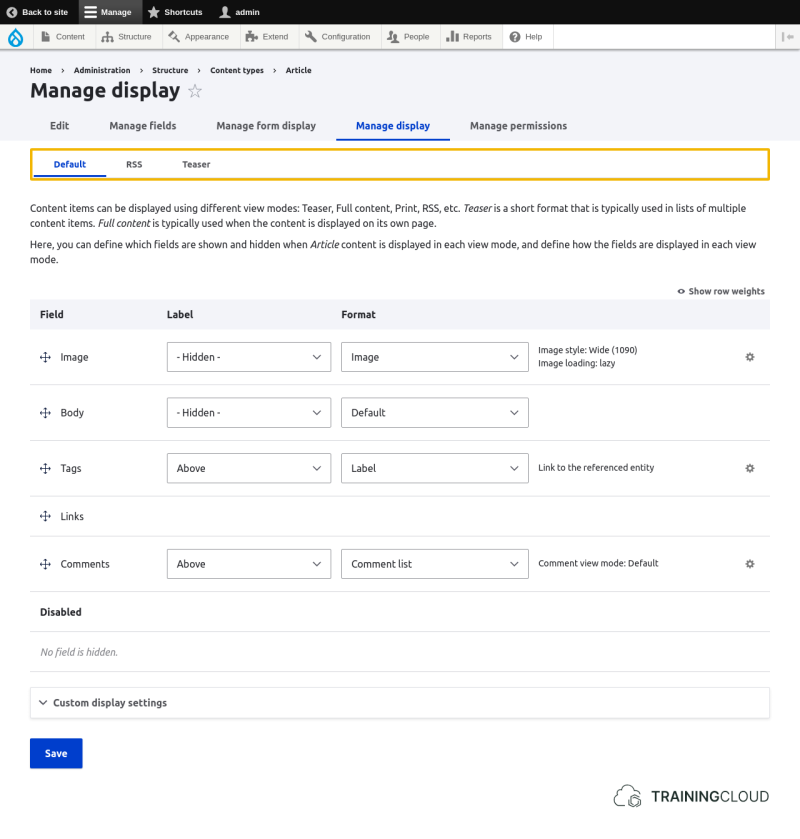
View modes are a concept unique to Drupal.
Each View mode represents a different way to visualise a type of content entity (remember content entities are things like nodes, content blocks, taxonomy terms, and user accounts). As site builders we don't always want to display a piece of content the same way on different pages.
Example use case scenarios:
- We want to display articles in a kind of summary mode where we show a small thumbnail and only the first paragraph, while on the full article page we want to show a large image and the full body.
- When we display content of the type 'Vehicle' in a list of vehicles, we only want to show the thumbnail, title, price, and year of construction. None of the other fields should be shown in the listing.
Drupal's answer to this is to introduce the concept of View modes:
- Each type of content entity can have multiple View modes - different modes of visualisation or representation.
- For each View mode you can decide which fields are shown/hidden, and how each particular field should be displayed when content is shown using that View mode.
In other words, for each type of entity we don't just manage the field display options; we mange a set of display options for each View mode.
Later on, instead of specifying the same set of display criteria over and over again in different places, we'll have the opportunity to specify, for instance, "build me a list of all vehicles using the custom Short listing format". And when we decide to change that listing format, all our listings across the site that use that View mode will be automatically changed as well.
Note that you don't have to use other View modes than the Default one. But it's an extremely handy feature, and you should at least know why it exists and how to use it.
Standard View modes
Three View modes are enabled by default for the Article and Basic page Content types:
- Default
- Used when an entity is shown in full
- Example: view any Article or Basic Page in full
- Teaser
- Used when an entity is shown in a kind summary of preview mode
- The list of content published to the home page uses the 'Teaser' mode by default for each item in the list.
- RSS
- Used in RSS feeds (news feeds)
- Each Drupal site publishes an RSS feed of its contents by default. Item in the RSS feed uses this View mode.
- If you're not familiar with RSS and / or have no interest in RSS, feel free to completely ignore this View mode.
Enabling more View modes
Underneath the list of fields at Manage > Structure > Content Types > Article > Manage Display you can find the Custom display settings field set which, when opened, lets you enable additional View modes you can then use and configure.
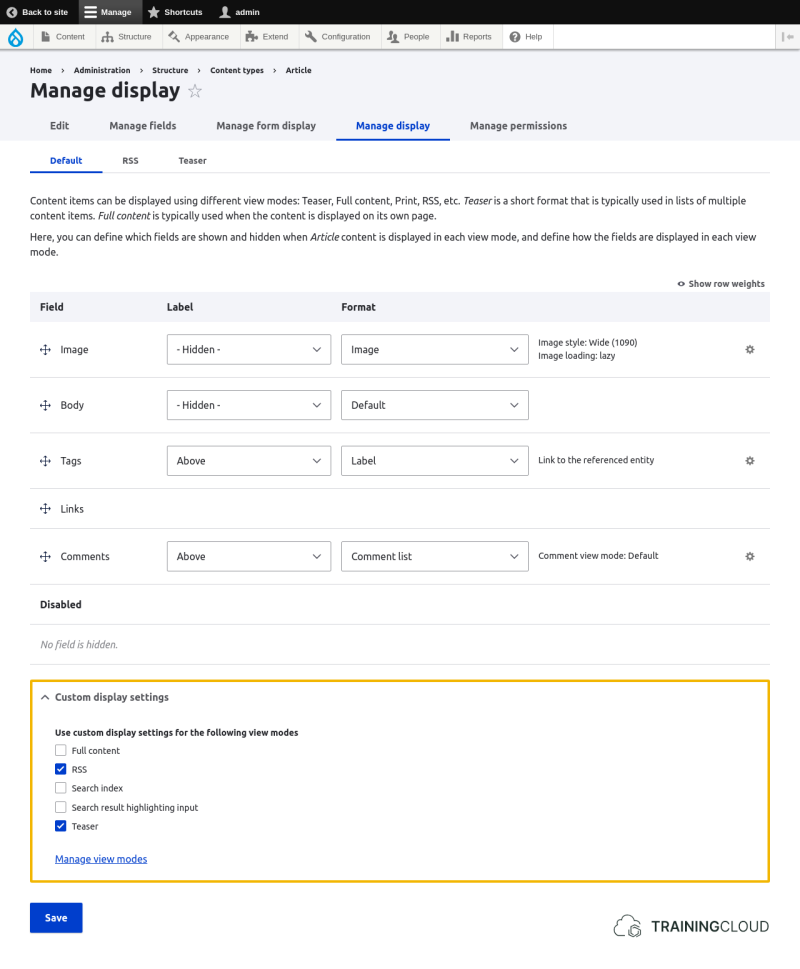
For this introductory guide we will stick to the Default and Teaser View modes.
But if you really want to, you can create your own additional View modes at Manage > Structure > Display Modes > View Modes. Once you've created them there and enabled them for your Content type, they'll appear in the Field UI, ready for use.
Activity 1
- Open the Manage display tab for Articles.
- For the Default and Teaser View modes:
- Compare which fields are shown/disabled.
- Compare the Image style settings of the Image field
- For the Default and Teaser View modes:
Activity 2
- Open the Manage display tab for Articles.
- For the Default View mode:
- Hide the label of the Tags field.
- Notice you have the choice between hidden and visually hidden. They both seem to do the same thing, but they don't. What do you think the difference might be?
- For the Teaser View mode:
- Hide the Image field
- For the Default View mode:
- View a full article that contains an image. Notice that the image is shown.
- View the home page. Notice that no Article images are shown.
→ after this task, go back and make the Image field on Articles visible again in both View modes.
Activity 3
- Open the Manage display tab for Articles.
- For the Teaser View mode, change the Image style from "Thumbnail (100x100)" to "Medium (200x200)" by clicking on the cog icon on the right hand side. Be sure to click the Update button to update the field format settings, and then click the Save button at the bottom to save all changes.
- Verify on the home page that Article images in Teaser View mode now display larger images.
Activity 4
- Open the Manage display tab for Articles.
- For the Default View mode, change the Image style to "None (original image)"
- Verify the effect by viewing an Article with a particularly large image.
→ after this task, go back and undo all the changes you made to the Image field on Articles.
Activity 5
- Open the Manage display tab for Articles.
- Inspect the formatting options of the other Article fields to get a feel for which display settings you can customise.
Summary
- View modes let you customize a content entity type's display options for different modes of representation.
- Nodes, Custom Blocks and User Accounts can all use View modes because View modes are part of the Field UI that all of these share.
- You can hide fields and labels, and customize certain formatting options depending on the type of field.
- Setting a label to Visually hidden hides it from view but leaves it present in the HTML source code; setting it to Hidden removes it from the source code entirely.