The Content Dashboard
The content dashboard at Administration > Content lists all of your site's content items, often referred to as nodes.
This page serves as the main interface for content editors to navigate and create or edit content:
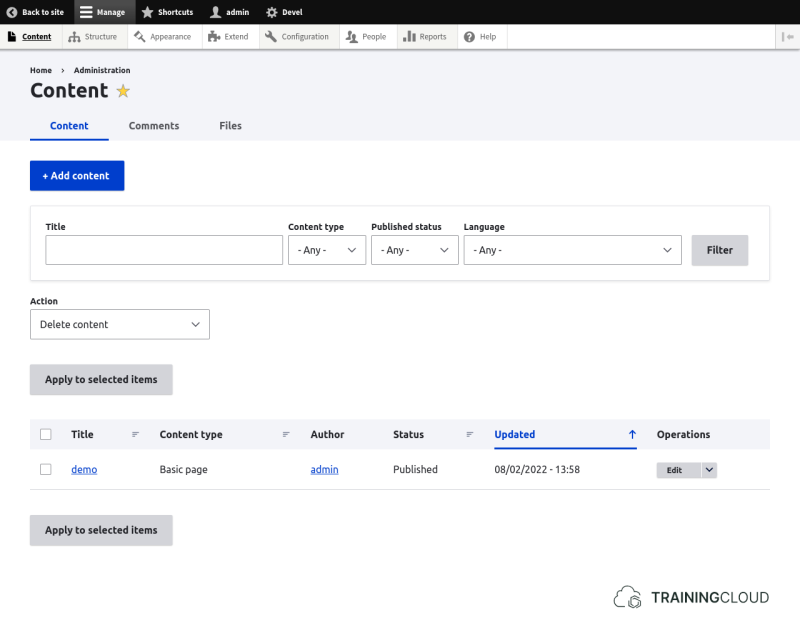
You can create content by clicking the Add content button and selecting which type of content you want to create.
Node edit forms
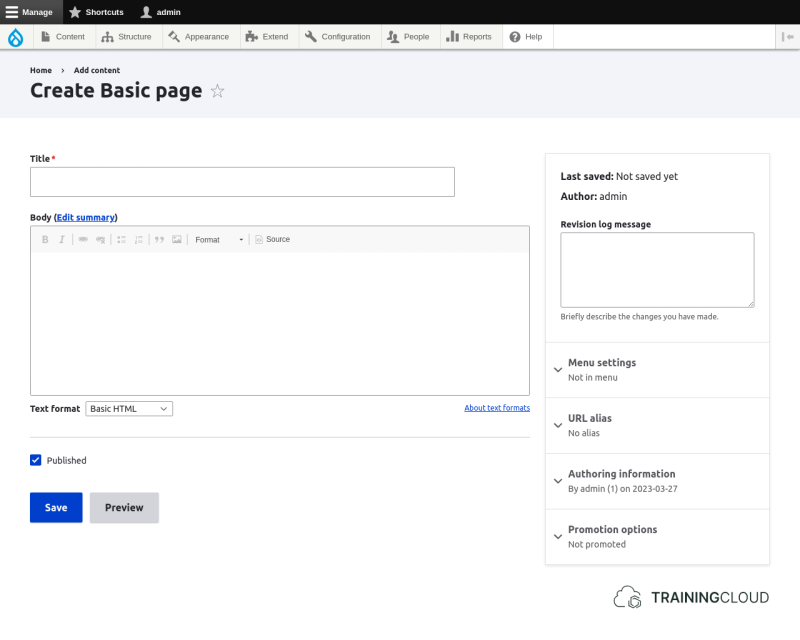
All standard content creation pages - also called node edit forms, have the same layout:
- on the left hand side you'll usually find content related fields (title, body, image(s), tags/keywords/categories, …)
- on the right side you'll find collapsible field sets with metadata fields (author, creation date, path, and so on)
Note:
Site builders sometimes modify or extend forms such as these. As a result, you may come across node edit forms that look very different from the default one discussed here.
Activity 1
- Create content of the type Basic Page
- You only need to fill in the Title and Body fields for now. Leave all the other fields as they are.
- Be sure to scroll down and click Save
Activity 2
- Create content of the type Article.
- Set a value for Title and Body, and upload an image.
- Leave all the other fields as they are.
- Be sure to scroll down and click 'Save'.
Activity 3
- Open your new Basic Page in one browser tab, and your new Article in a second browser tab.
- Switching between both tabs, compare both pages. Do they look different? Do they offer the same functionality to visitors?
Activity 4
This task is similar to the last one, but this time you'll compare the node edit forms of articles and basic pages.
- Edit your new basic page in one browser tab.
- Edit your new article in a second browser tab.
- Compare both edit pages. What is different?
Activity 5
In a third browser tab, open up the home page.
Of the two content items you created, one shows up on the home page and one doesn't.
→ Compare both node edit forms in your other two browser tabs and try to find a difference in settings that could explain this.
Summary
- The main Content Dashboard is located at Administration > Content.
- Node edit forms have a similar layout, but site builders can override that layout:
- left hand side: mostly content related fields
- right hand side: mostly metadata related fields