Objectives & prerequisites
- add media items
- manage media items
- Basic content management operations (view, create, update, delete).
- Understanding entities, entity types, and entity bundles.
Introduction
Drupal's core media system is based on two core modules:
- Media
- Media Library
The Media module provides a new entity type called Media, a new field type called Media, and a new management screen where you can create, view, update, and delete media entities.
The Media Library module - not discussed in this unit - provides a better, unified user experience by letting editors create and insert media while they're managing other content.
In this unit we focus on the Media module. In a later unit we'll look at the Media Library.
About Media entities
Drupal contains a number of entity types: Node, User, Taxonomy Term, Content Block, and more.
The Media module adds a new entity type called Media to that list, and provides five media types by default:
- Document
- Image
- Audio
- Video
- Remote video
You can see the list of available Media entity types at Manage > Structure > Media types.
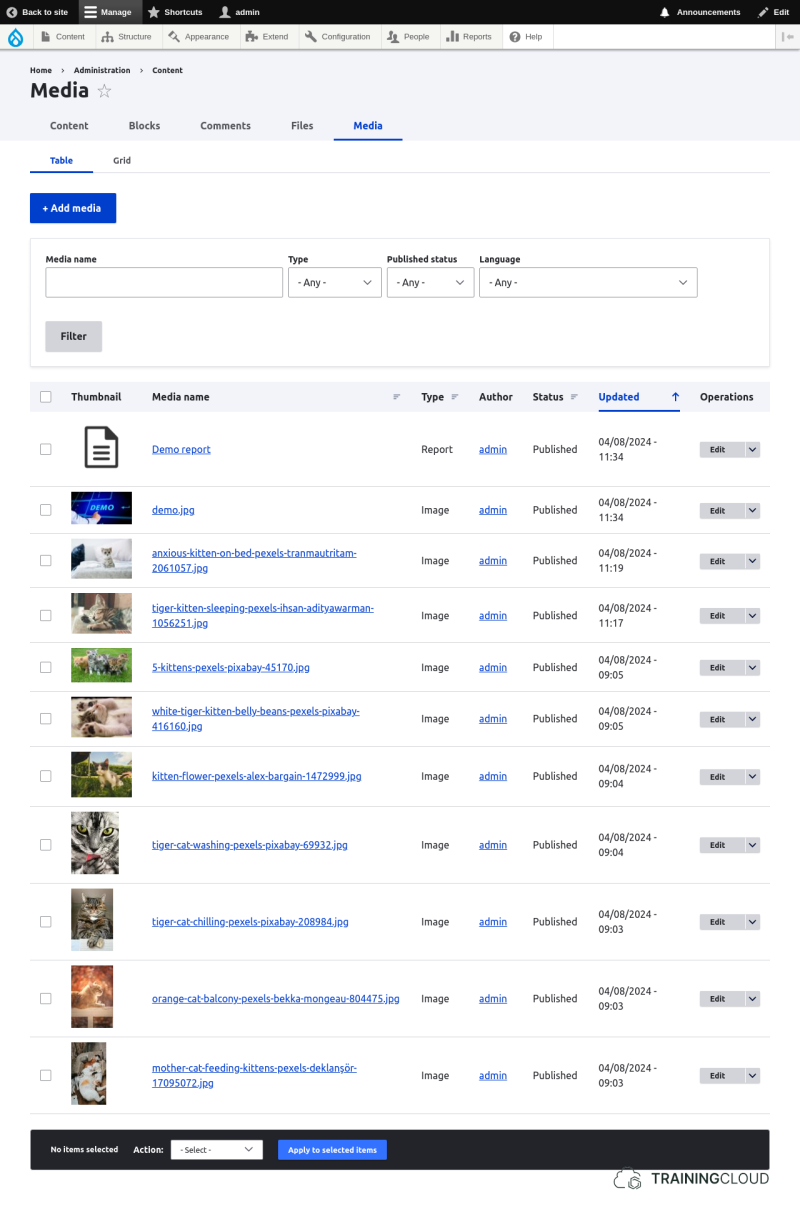
The list of Media items is located at Manage > Content > Media.
The idea is that each media entity you create represents a single media asset (a single file, document, video, or audio file):
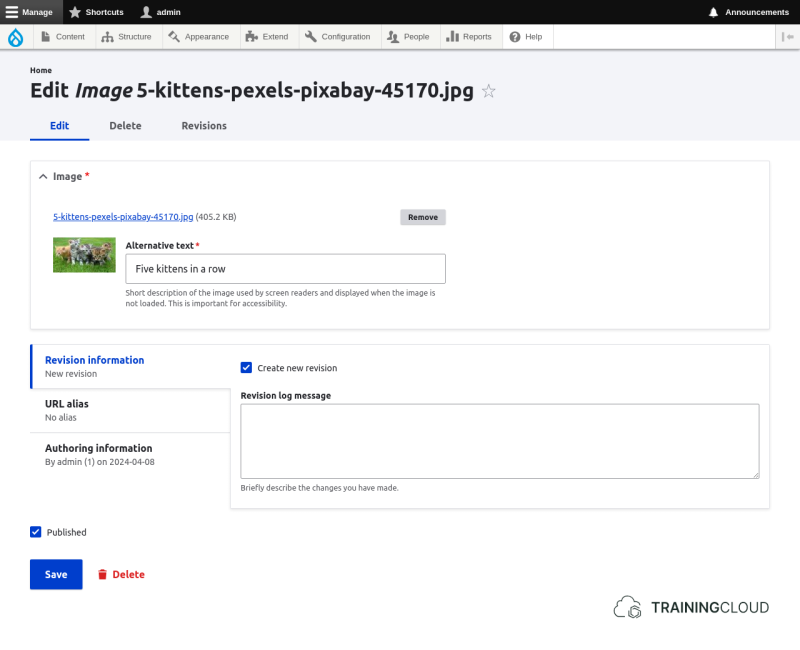
Later, when you're editing content, you can add (technically: reference) these entities, and reuse them multiple times... something which is not possible when you use basic File or Image fields.
In other words, a Media entity is a container that contains the media file, and metadata such as owner, creation date, title, publication status, and other field data that may be present.
Advantages
The great thing about using media entities:
- Media entities support revisions (just like nodes).
- Media entities have a publication status (just like nodes).
- Media entities have their own set of permissions, grouped by media type (just like nodes).
The really great thing about using media entities:
- You can update the file or image contained within the media entity, and all entities that reference it (typically nodes) will automatically show the updated file.
- They are fieldable, which means you can add your own fields (such as a field for copyright information, fields to categorize or tag media items, and so on).
Managing media entities
You can manage media entities, also called media items, on the media management screen at Manage > Content > Media:
Adding media
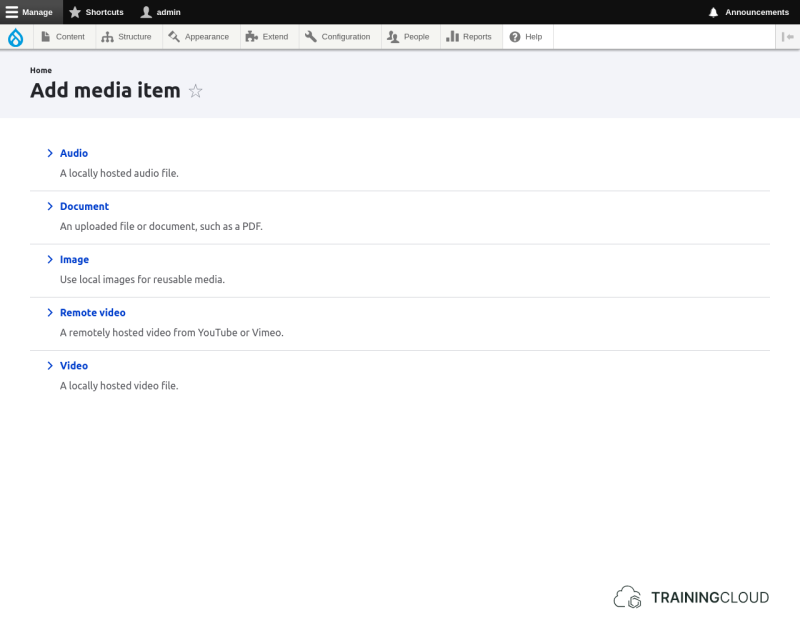
You can add new media via the "Add media" button.
Step 1: select which type of media to add
Step 2: add the media and fill in the fields
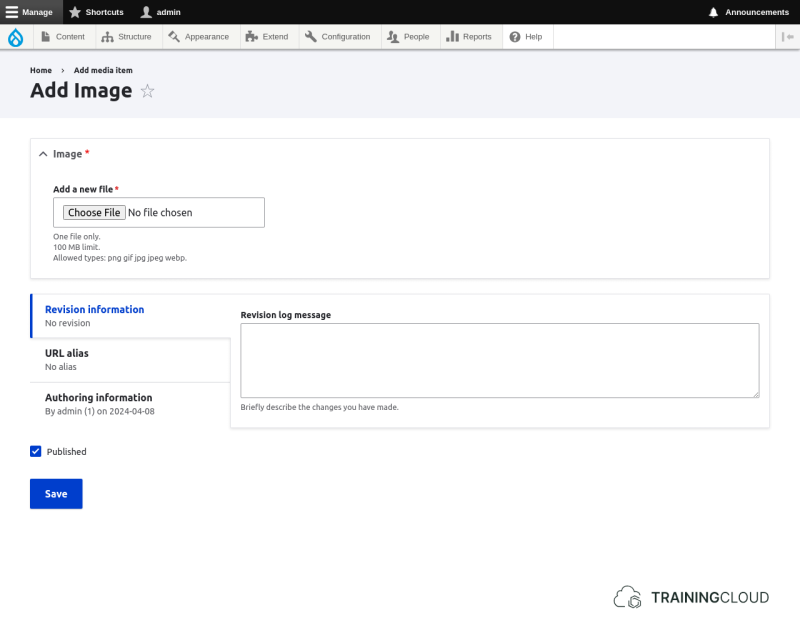
→ Save the entity, and you're done.
Your saved media entities are now ready to be added to content via one or more fields of the type Media Reference.
Refer to the materials on working with Media fields to learn how to add media support to any entity type / content type.
Activity
Create at least 5 Media items of the type Image. You will need them in the following units.
Summary
- The core Media system is based on the Media and Media Library modules.
- Media entities are containers that contain the media file itself (or a link to an external media file) and other fields mostly used for metadata.
- You can manage Media entities at Manage > Content > Media.
- Media entities:
- can be reused
- are fieldable
- support revisions
- can be published / unpublished